

Understanding which Salesforce edition your organization is using is essential for managing features, licenses, limits, and customization capabilities. Whether you’re a Salesforce admin, consultant, or user, knowing your edition—like Salesforce Enterprise, Professional, or Essentials—can help you make better decisions about integrations, upgrades, and performance. This article offers a comprehensive, easy-to-understand guide to finding out your Salesforce edition and understanding the differences between editions.
Why Knowing Your Salesforce Edition Matters
Your Salesforce edition determines which features are available to you, how many custom objects you can create, how much API access you have, and whether you can use automation tools like Flow or Process Builder. For example, the Enterprise Edition supports advanced customization and automation features, while the Essentials Edition has limitations meant for small businesses. Understanding your edition helps you plan upgrades, integrations, and user training accordingly.
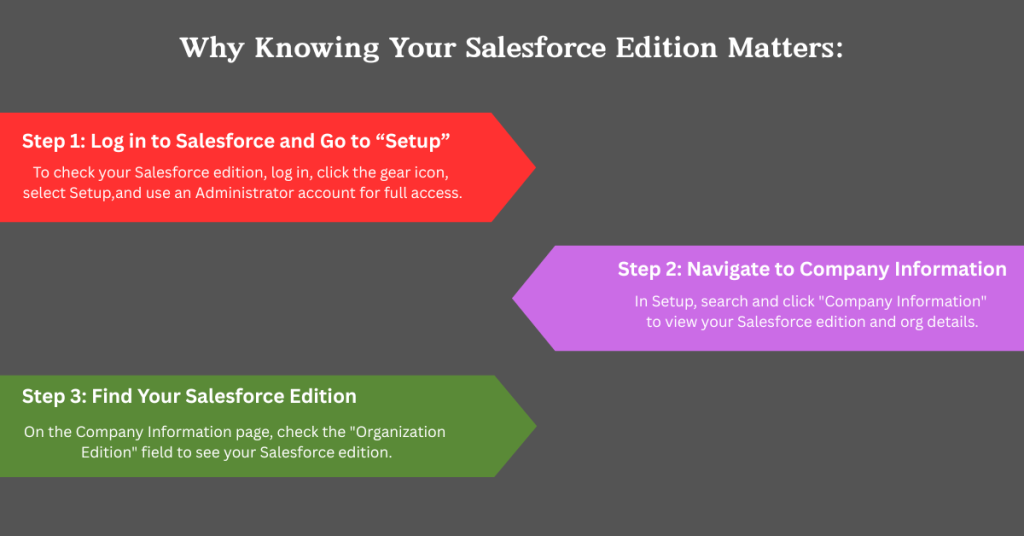
Step 1: Log in to Salesforce and Go to “Setup”
To check your Salesforce edition, the first step is to log in to your Salesforce org. Once logged in, click on the gear icon in the top-right corner and select “Setup” from the dropdown. This will take you to the Setup page, where all configuration settings are available. It’s recommended to use a Salesforce Administrator account to ensure you have access to all options.
Step 2: Navigate to Company Information
After opening Setup, type “Company Information” in the Quick Find search box on the left-hand panel. Click on the Company Information link from the results. This page gives a snapshot of your Salesforce organization, including license details, edition, storage usage, and more.
Step 3: Find Your Salesforce Edition
On the Company Information page, look for the field named “Organization Edition”. This will display your current edition, such as Salesforce Enterprise Edition, Professional Edition, Essentials Edition, or Unlimited Edition. This is the most reliable way to check your Salesforce edition directly from the platform.
Understanding the Different Salesforce Editions
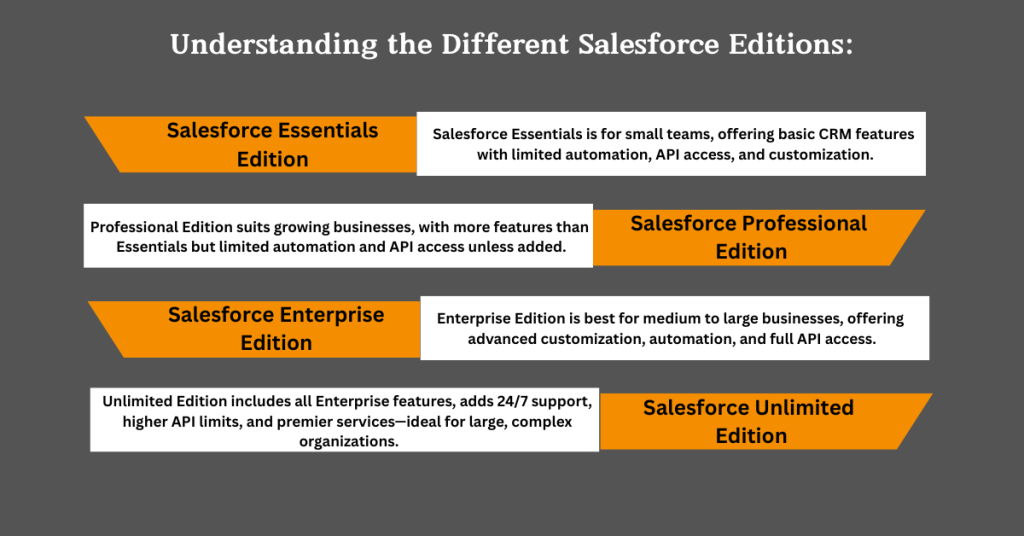
1. Salesforce Essentials Edition
Salesforce Essentials is designed for small teams and startups. It offers basic CRM functionality like lead and contact management, but has limitations on automation, API access, and custom object creation. If you’re using Essentials, you’ll have fewer options for customizing workflows and integrations.
2. Salesforce Professional Edition
The Professional Edition provides more CRM capabilities than Essentials and is suitable for growing businesses. However, it still lacks full automation tools like Flow and Process Builder unless purchased as add-ons. API access may also be restricted based on your contract.
3. Salesforce Enterprise Edition
Salesforce Enterprise Edition is ideal for medium to large businesses. It includes advanced customization, unlimited record types, process automation tools, role-based access, and API integrations. Most Salesforce admins and developers prefer this edition for its flexibility.
4. Salesforce Unlimited Edition
This edition offers everything in Enterprise, plus 24/7 support, increased API limits, and access to premier services. It is best suited for organizations with complex CRM needs and large user bases. The cost is higher, but so are the benefits.
How to Identify the Edition via Salesforce Classic

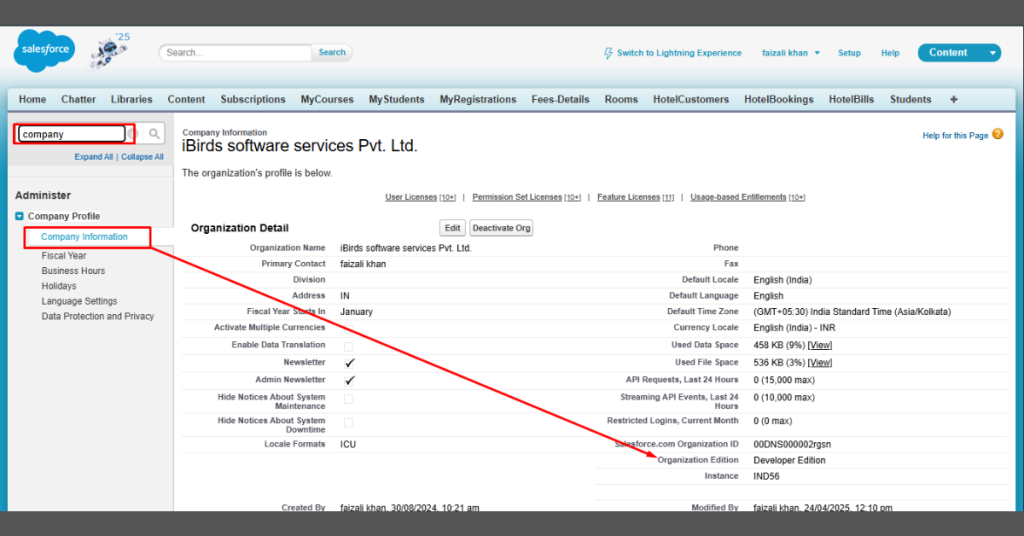
If you’re using Salesforce Classic instead of Lightning, you can still follow similar steps. Go to Setup > Company Profile > Company Information. The “Organization Edition” field will be displayed here as well. Keep in mind that Lightning Experience provides a more modern interface and easier navigation.
How to Check Your Edition Using Salesforce Help or Trust Site
Alternatively, you can visit the Salesforce Trust Site (trust.salesforce.com) and log in to see information about your org, including edition and instance details. Additionally, if you have trouble accessing Setup, contact your Salesforce administrator or check your licensing agreement for the edition details.
Common Issues When You Don’t Know Your Edition
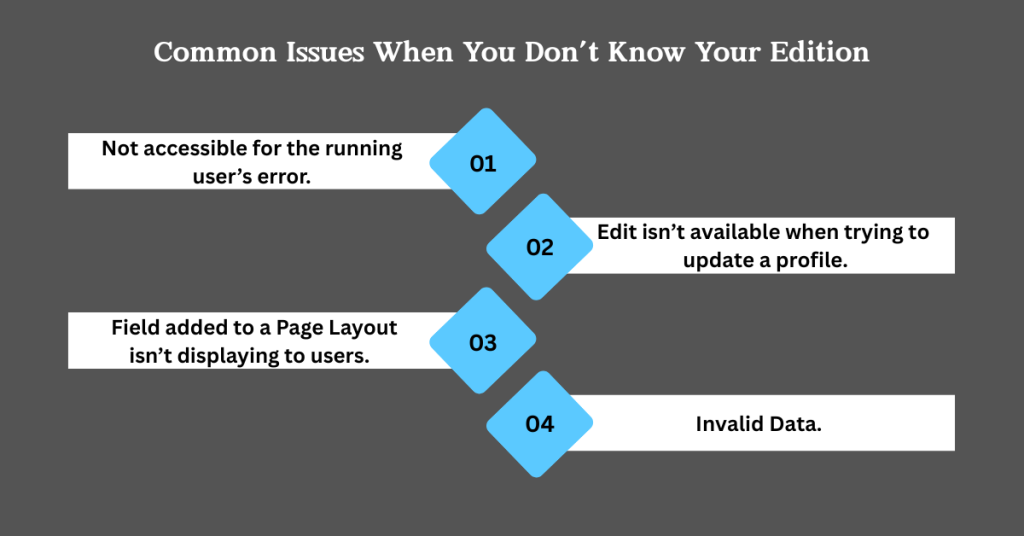
If you’re unaware of your Salesforce edition, you may face limitations during implementation. For example:
- You may plan automation features like Flows that aren’t supported in your edition.
- Third-party tools or apps might not integrate properly if your edition lacks API access.
- Training and documentation may not match your org’s features.
By knowing your edition early, you can avoid compatibility issues and align your business strategies with your CRM capabilities.
How to Upgrade or Downgrade Your Salesforce Edition
Upgrading from Essentials or Professional to Enterprise is a common step as your business grows. To upgrade, contact your Salesforce Account Executive or use the Help & Training portal. Downgrading is rare and typically requires ending the current contract and starting a new one, so consult your Salesforce representative carefully before making changes.
Tips to Make the Most of Your Salesforce Edition
Regardless of your edition, there are ways to maximize its effectiveness:
- Use native features to their fullest.
- Train your team to adapt to edition-specific features.
- Plan for future scalability if you’re using Essentials or Professional.
- Audit your CRM usage every quarter to decide if an upgrade is needed.
FAQs: Which Salesforce Edition Do I Have?
Q: Can I switch between editions?
A: You can upgrade easily, but downgrades may require starting a new org.
Q: Does Salesforce notify me of my edition changes?
A: No automatic notification is sent. You need to verify through Setup or your Salesforce account manager.
Q: Are all AppExchange apps compatible with every edition?
A: Not all. Many apps require Enterprise or higher editions for API access.
Conclusion: Know Your Edition to Use Salesforce Smarter
Knowing which Salesforce edition you’re using is more than a technical detail—it impacts everything from integrations to automation and scalability. Whether you’re just starting with Salesforce Essentials or managing a large team on Enterprise or Unlimited, identifying your edition gives you the foundation to use the platform effectively. Take a few minutes to verify your edition through the Setup menu, and use that knowledge to guide your CRM strategy with iBirds Services.