

Salesforce deployments help teams move custom fields, Apex classes, Flows, validation rules, and other configuration changes between environments. However, a deployment that works in a sandbox may fail when moved to testing or production.
Salesforce deployment errors can occur because of missing dependencies, failed Apex tests, incompatible metadata, permission problems, or differences between Salesforce orgs. Sometimes, a single missing component creates several additional errors, making the deployment report difficult to understand.
The best approach is to identify the underlying problem before changing more metadata. This guide explains nine common Salesforce deployment errors, how to troubleshoot them, and how to reduce the chances of encountering them again.
What Are Salesforce Deployment Errors?
Salesforce deployment errors occur when the platform cannot validate or apply a set of changes to the target organization. Deployments may use Change Sets, Salesforce CLI, Metadata API, or a Salesforce DevOps tool.
The exact solution depends on the error message, the components being deployed, the source and target environments, and the deployment method.
9 Common Salesforce Deployment Errors and How to Fix Them
1. Missing Metadata Dependencies
Common messages: Field does not exist, Variable does not exist, or Method does not exist or incorrect signature.
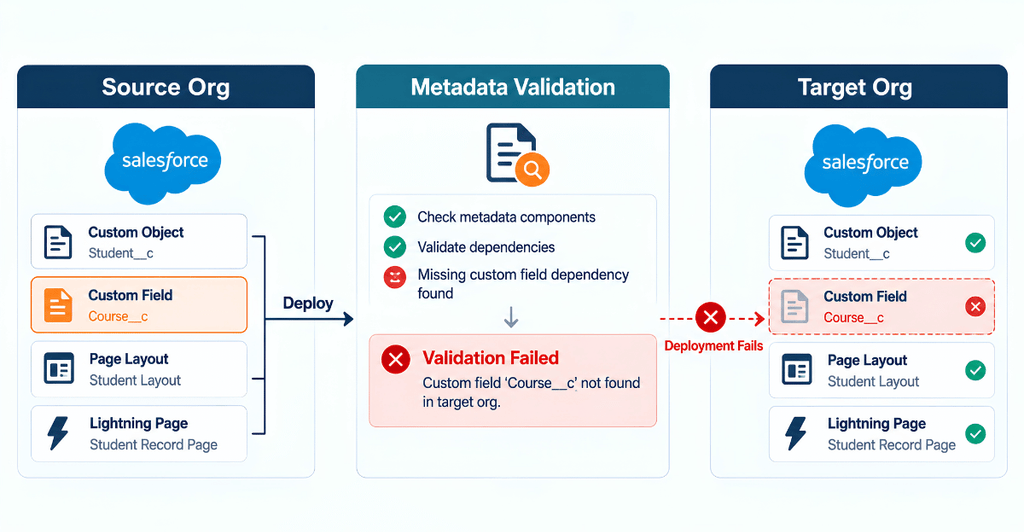
These errors occur when a component depends on another component that is missing from the deployment package or target org. For example, an Apex class might reference a custom field that has not been deployed.
How to fix it:
- Identify the missing field, object, class, or other component from the error message.
- Check whether the component exists in the source and target orgs.
- Add the required dependencies to the deployment package.
- Validate the deployment again.
Deploy related components in a sensible order when dependencies require it. Fixing the first missing dependency may also resolve several related errors.
2. Apex Code Coverage and Test Failures
Salesforce requires at least 75% Apex code coverage for production deployments involving Apex, along with successful required tests. Every trigger must also have test coverage. The applicable coverage calculation depends on the deployment test level.
A deployment may fail even when the source org appears to have sufficient coverage. New Apex code can change the coverage calculation, and test methods may fail because of incorrect assumptions, missing data, or changes to existing functionality.
How to fix it:
- Review the deployment results and identify the failing test methods.
- Run the affected tests in the source environment.
- Correct the code or test data causing the failures.
- Check the target org’s coverage and ensure the required coverage is met.
- Validate the deployment again.
Read the official Salesforce Apex testing documentation for testing guidance.
3. Invalid Apex Classes or Triggers
An Apex class or trigger may become invalid after a referenced field, method, object, or other dependency changes. Deploying another component that depends on the invalid code can cause additional failures.
How to fix it:
- Open the affected class or trigger and inspect its compilation errors.
- Confirm that referenced fields, methods, and objects still exist.
- Deploy the missing or updated dependencies.
- Recompile or save the affected code where appropriate.
- Run the relevant tests before validating again.
Avoid treating every invalid class as an independent problem. Several classes may depend on the same missing component.
4. API Version and Metadata Compatibility Errors
Salesforce metadata is associated with API versions. A component created with newer metadata features may not deploy successfully to an environment or API version that does not support those features.
Messages such as Property not valid in version can indicate a compatibility problem. Differences between API versions may also affect field names or metadata structures.
How to fix it:
- Check the API version of the failing component.
- Review
apiVersionvalues in relevant metadata files and the project’s configuration. - Confirm that the target org supports the metadata being deployed.
- Use compatible metadata and API versions where possible.
- Investigate release-specific errors before changing version numbers.
Changing an API version blindly can introduce other issues. Confirm the actual compatibility problem first.
5. Salesforce Flow Deployment Failures
Flows can fail to deploy when referenced fields, objects, Apex actions, or other dependencies are missing. Differences in supported metadata versions or target-org configuration can also cause failures.
For example, a Flow may reference a custom field that exists in the development sandbox but has not been created in production.
How to fix it:
- Open the deployment error and identify the affected Flow.
- Check the referenced objects, fields, and actions.
- Include missing dependencies in the deployment.
- Confirm that the target org supports the Flow’s configuration.
- Validate and test the Flow in the target environment.
For more guidance on automation, see our complete guide to Salesforce Flow.
6. Missing Permissions or Profile Dependencies
Deployments may fail or produce unexpected results when permission sets, profiles, field-level security, or related configuration are missing or incompatible with the target org.
A field can deploy successfully while users still cannot access it because the required permissions have not been configured.
How to fix it:
- Check the exact error message to determine whether it concerns deployment or user access.
- Confirm that the relevant permission sets and profiles exist.
- Include required metadata dependencies where applicable.
- Review object permissions and field-level security after deployment.
- Test access with an appropriate user account.
Remember that a successful deployment does not automatically mean every user has the correct permissions.
7. Change Set Authentication and Configuration Problems
Change Set deployments depend on the relationship and configuration between the source and target Salesforce orgs. An error such as This organization isn't authorized to upload change sets to other organizations can indicate that the receiving org has not authorized inbound Change Sets from the source.
How to fix it:
- Confirm that you selected the correct source and target orgs.
- Check the target org’s inbound Change Set configuration.
- Verify that the source org is authorized to upload changes.
- Review the deployment status and any detailed error messages.
- Upload and validate the Change Set again after correcting the configuration.
If the error persists, record the affected orgs and deployment details before contacting Salesforce Support.
8. Salesforce CLI Source Tracking Errors
Developers using VS Code and Salesforce CLI may encounter errors when attempting source-tracking operations against an org that does not support source tracking.
Salesforce source tracking is not supported in every org type, including production orgs and several sandbox types. This does not necessarily prevent metadata deployment; it means the workflow must be configured appropriately.
How to fix it:
- Identify the org type and confirm whether source tracking is supported.
- Check whether your command or VS Code workflow requires source tracking.
- For unsupported orgs, use an appropriate metadata deployment or retrieval command and explicitly select the components you need.
- Review your Salesforce CLI project configuration before retrying.
See the official Salesforce guide to source tracking for supported org types and limitations.
9. UNABLE_TO_LOCK_ROW and Environment-Related Failures
The UNABLE_TO_LOCK_ROW error occurs when Salesforce cannot obtain a required record lock because another transaction is holding it. It is more commonly encountered during data operations or automated processing than as a direct metadata compatibility error, but it can affect release-related testing and workflows.
How to fix it:
- Identify the transaction or process causing the lock conflict.
- Check scheduled jobs, integrations, Flows, and batch operations that may update the same records.
- Retry the affected operation when appropriate.
- Coordinate overlapping jobs to reduce concurrent updates.
- Investigate recurring locking issues instead of relying only on retries.
Do not disable production automation without understanding its dependencies and business impact.
Quick Reference: Salesforce Deployment Errors
| Error type | Common cause | First action |
|---|---|---|
| Missing dependency | Referenced metadata is unavailable | Identify and include dependencies |
| Apex test failure | Failing tests or insufficient coverage | Review test results and coverage |
| Invalid Apex class | Broken reference or compilation issue | Fix dependencies and recompile |
| API compatibility | Unsupported metadata or version mismatch | Check component and target API versions |
| Flow failure | Missing references or unsupported configuration | Inspect Flow dependencies |
| Permission issue | Missing or incorrect security metadata | Review permissions and target configuration |
| Change Set error | Org authorization or setup issue | Check inbound Change Set settings |
| Source tracking error | Unsupported org type or incorrect workflow | Use a supported deployment method |
| Record locking | Concurrent transactions | Identify conflicting processes |
Step-by-Step Checklist for Troubleshooting a Failed Deployment
When several errors appear together, use this workflow instead of trying random changes.
- Save the error report. Record the exact messages, timestamps, affected components, source org, target org, and deployment method.
- Find the earliest root error. Look for missing objects, fields, methods, or other dependencies that could explain later failures.
- Separate independent errors. Group errors by component and remove duplicate entries from your working list.
- Check the environment. Compare API versions, required features, permissions, and org configuration.
- Validate a smaller deployment. If the package contains many unrelated changes, isolate the failing components to narrow down the cause.
- Run tests and validate again. Confirm that the underlying issue is resolved before deploying to production.
Salesforce also provides an official deployment troubleshooting guide for errors involving Change Sets and Metadata API deployments.
Best Practices to Prevent Salesforce Deployment Errors
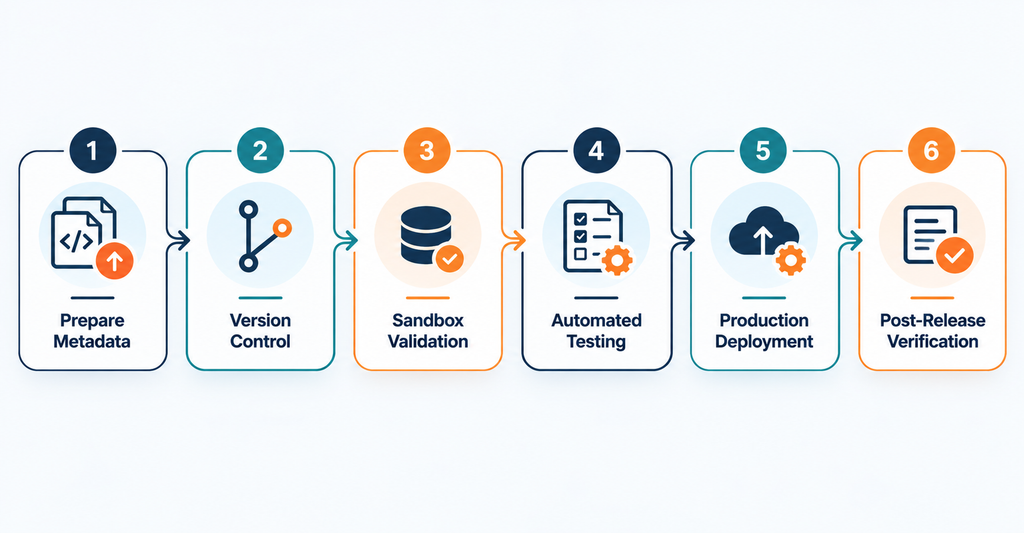
Preventing errors starts before the deployment package is created. A consistent release process reduces the risk of missing metadata and unexpected failures.
| Best practice | Why it helps |
|---|---|
| Use version control | Tracks changes and helps teams review differences |
| Deploy in smaller batches | Makes failures easier to isolate |
| Validate in a sandbox | Identifies issues before production release |
| Maintain reliable Apex tests | Helps detect regressions and meet deployment requirements |
| Review metadata dependencies | Reduces missing-component errors |
| Keep environments aligned | Limits configuration and compatibility differences |
| Document releases | Makes troubleshooting and rollback planning easier |
For complex Salesforce environments, teams can also review their release process with Salesforce Consulting Services to identify opportunities for better deployment planning, testing, and configuration management.
Frequently Asked Questions
1. Why do Salesforce deployments fail?
Common reasons include missing metadata dependencies, Apex test failures, incompatible API versions, Flow configuration problems, and differences between source and target orgs. The exact error message is the best starting point for troubleshooting.
2. How do I find the cause of a Salesforce deployment error?
Review the deployment details and identify the first specific error. Check the named component, its dependencies, and the target org configuration. Later errors may be consequences of an earlier failure.
3. Does Salesforce always require 75% Apex code coverage?
Salesforce requires at least 75% Apex coverage for production deployments involving Apex, with successful required tests and coverage for every trigger. The precise coverage calculation depends on the deployment test level, so check the applicable requirements for your deployment.
4. Can I deploy Salesforce metadata without source tracking?
Yes. Source tracking is not supported for every org type, but metadata can still be deployed or retrieved using an appropriate Salesforce CLI or Metadata API workflow.
5. Should I deploy all Salesforce changes at once?
Not necessarily. Smaller, logically grouped deployments make it easier to identify failed components and resolve dependencies. However, components with dependencies should be planned and deployed together or in the correct order.
6. What should I do if a deployment error continues after troubleshooting?
Record the complete error message, timestamp, affected orgs, component names, and steps already attempted. Check the relevant Salesforce documentation and contact Salesforce Support if the issue remains unresolved, especially when the message indicates an unexpected internal error.
Conclusion
Salesforce deployment errors are easier to resolve when you focus on the underlying cause instead of treating every message as a separate problem. Start with missing dependencies, review Apex test results, confirm API compatibility, and check the target org’s configuration.
A reliable release process should include version control, sandbox validation, appropriate testing, smaller deployments where practical, and clear documentation. These practices help Salesforce teams reduce avoidable failures and move changes between environments with greater confidence.