

Salesforce is a powerful cloud platform that allows businesses to manage customer data, automate processes, and build custom applications. However, when developers write Apex code, they must work within certain platform restrictions known as Salesforce Governor Limits.
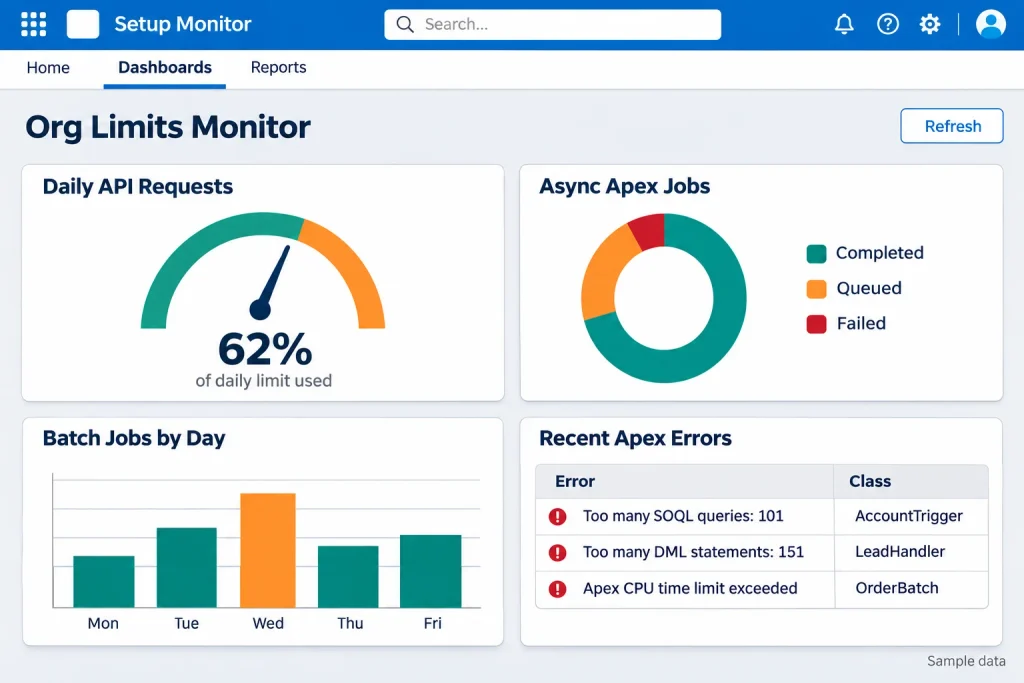
Have you ever encountered errors such as Too many SOQL queries: 101, Too many DML statements: 151, or Apex CPU time limit exceeded? These errors usually indicate that your code has exceeded an available platform resource limit.
Understanding these limits is important for building applications that work correctly, even when they process hundreds or thousands of records.
In this guide, we will explain what Salesforce Governor Limits are, why they exist, the most important limits developers should know, and practical ways to avoid common errors.
What Are Salesforce Governor Limits?
Salesforce Governor Limits are runtime restrictions that control how much of the platform’s shared resources an Apex transaction can consume.
Salesforce uses a multi-tenant architecture, which means multiple organizations share the platform’s underlying infrastructure. Each organization has its own data and configuration, but the computing resources are shared.
For example, imagine an apartment building where several families share electricity and water. If one family uses most of the available resources, other families may experience problems.
Governor Limits work in a similar way. They help ensure that one organization’s code does not consume excessive processing power, memory, or database resources.
When Apex code exceeds a governor limit, Salesforce generally throws a runtime System.LimitException, and the transaction fails. These exceptions cannot be handled using a normal Apex try-catch block.
Why Are Salesforce Governor Limits Important?
Governor Limits are not simply restrictions. They encourage developers to build efficient applications that can handle growing business requirements.
Here are four important reasons:
- Fair resource usage: They prevent one transaction from consuming too many shared platform resources.
- Better performance: They encourage developers to avoid unnecessary queries and repeated database operations.
- Scalability: Bulkified code can process multiple records more efficiently.
- Platform stability: They help maintain a reliable environment for different Salesforce organizations.
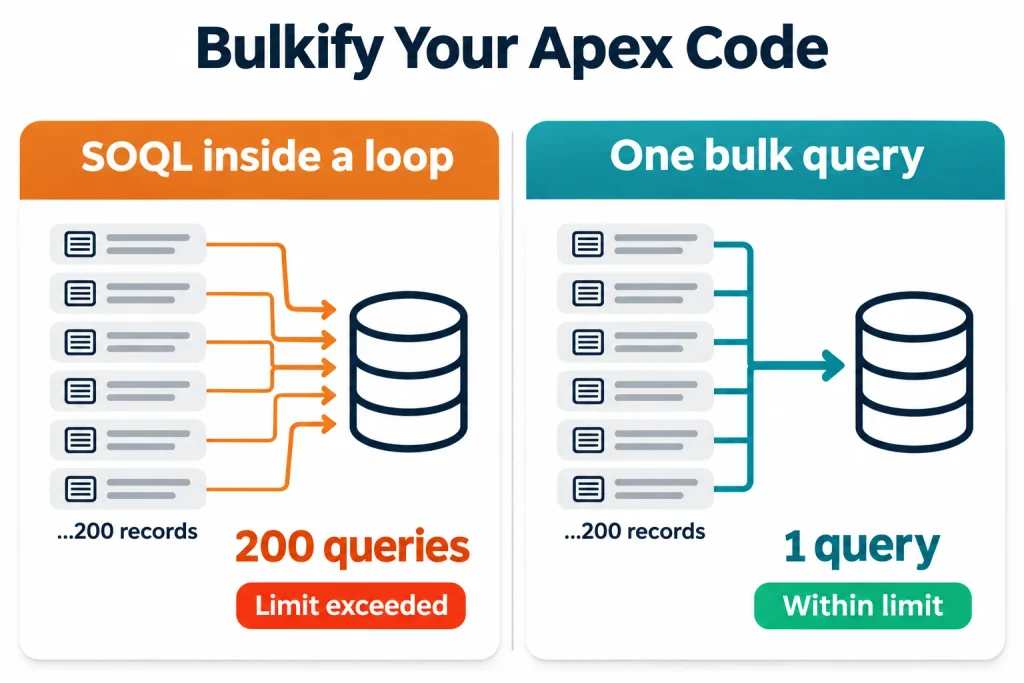
For example, a trigger that works with one Account record may fail when 200 records are processed together if it runs a separate SOQL query for every record.
This is why developers should consider bulk processing from the beginning.
Types of Salesforce Governor Limits
Salesforce has different categories of limits. Understanding them helps developers identify which restriction applies to their code.
1. Per-Transaction Apex Limits
These limits apply to an individual Apex transaction. They include SOQL queries, DML statements, CPU time, heap size, and callouts.
For Batch Apex, per-transaction limits reset for each execution of the execute() method.
2. Static Apex Limits
Static limits apply to specific platform operations rather than being limited to one Apex transaction. Examples include the maximum Apex code size in an organization and the maximum number of records returned by a Batch Apex QueryLocator.
3. Size-Specific Apex Limits
These restrictions relate to the size of Apex code or data handled during execution. Heap size and Apex code size are examples.
4. Other Platform Limits
Salesforce also enforces limits related to email, API usage, asynchronous processing, and other platform services.
Developers should check the relevant documentation before designing a solution because not every platform limit works in the same way.
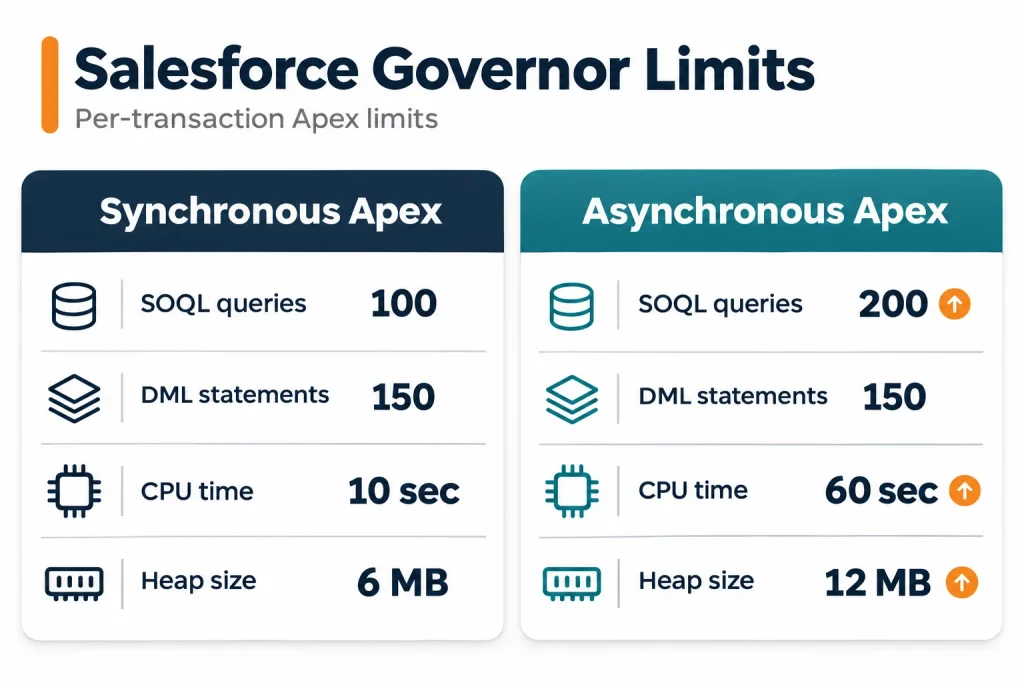
Salesforce Governor Limits Cheat Sheet
The following table covers some important per-transaction Apex limits.
| Resource | Synchronous Apex | Asynchronous Apex |
|---|---|---|
| SOQL queries | 100 | 200 |
| SOQL records retrieved | 50,000 | 50,000 |
| SOSL queries | 20 | 20 |
| SOSL records retrieved | 2,000 | 2,000 |
| DML statements | 150 | 150 |
| Records processed by DML | 10,000 | 10,000 |
| CPU time | 10 seconds | 60 seconds |
| Heap size | 6 MB | 12 MB |
| HTTP callouts | 100 | 100 |
| Cumulative callout timeout | 120 seconds | 120 seconds |
Important: These are common baseline limits, not a complete list. Some limits depend on execution context. For example, scheduled Apex uses synchronous Apex limits even though scheduled jobs are an asynchronous feature. Always verify the relevant limits in the official Salesforce Apex Governor Limits documentation.
4 Common Salesforce Governor Limit Errors
Knowing the limits is useful, but developers should also understand the errors that occur when code exceeds them.
1. Too Many SOQL Queries: 101
This error occurs when synchronous Apex executes more than 100 SOQL queries in one transaction.
Incorrect approach: SOQL inside a loop
for (Account acc : Trigger.new) {
    List<Contact> contacts = [
        SELECT Id, LastName
        FROM Contact
        WHERE AccountId = :acc.Id
    ];
}
If 200 Account records are processed, this code can execute 200 queries and exceed the synchronous limit.
Improved approach: Use a collection
Set<Id> accountIds = new Set<Id>();

for (Account acc : Trigger.new) {
    accountIds.add(acc.Id);
}

List<Contact> contacts = [
    SELECT Id, LastName, AccountId
    FROM Contact
    WHERE AccountId IN :accountIds
];
The improved approach uses one query to retrieve related Contacts for the collection of Account records.
2. Too Many DML Statements: 151
This error occurs when a transaction executes more than 150 DML statements.
Incorrect approach:
for (Integer i = 0; i < 150; i++) {
    Account acc = new Account();
    acc.Name = 'Test Account ' + i;
    insert acc;
}
Each insert statement consumes one DML statement.
Improved approach:
List<Account> accountList = new List<Account>();

for (Integer i = 0; i < 150; i++) {
    Account acc = new Account();
    acc.Name = 'Test Account ' + i;
    accountList.add(acc);
}

if (!accountList.isEmpty()) {
    insert accountList;
}
Here, records are collected in a list and inserted using one DML statement.
Remember that DML statements and DML records have separate limits. One bulk insert can use one DML statement, but the transaction is still subject to the 10,000-record DML limit.
3. Apex CPU Time Limit Exceeded
This error occurs when Apex and related automation consume more server processing time than the transaction allows.
Common causes include:
- Nested loops with large collections.
- Repeated calculations.
- Complex trigger logic.
- Recursive execution.
- Too many automation processes running in the same transaction.
To improve performance, simplify complex logic, avoid unnecessary loops, and review the automation that runs alongside Apex.
4. Too Many Query Rows: 50001
Salesforce allows a transaction to retrieve up to 50,000 records through SOQL queries.
If a query returns more than the allowed number of rows, Salesforce throws an error.
For example, instead of retrieving every Account record without considering the requirement, use selective filters:
List<Account> accounts = [
    SELECT Id, Name
    FROM Account
    WHERE Industry = 'Technology'
    LIMIT 500
];
For larger data-processing requirements, consider Batch Apex rather than loading all records into one transaction.
9 Best Practices to Avoid Salesforce Governor Limits
Following good coding practices can reduce errors and make applications easier to maintain.
1. Never Write SOQL Queries Inside Loops
Avoid running database queries repeatedly for individual records. Collect record IDs first, then retrieve related records using one query.
2. Avoid DML Statements Inside Loops
Create a list of records, add records to it, and perform one bulk DML operation outside the loop.
3. Always Bulkify Apex Code
Bulkification means designing Apex code to process multiple records together instead of handling only one record at a time.
Apex triggers can receive batches of records, so your code should be able to handle both single-record and bulk operations.
4. Use Collections Efficiently
Use the right collection for the task:
- List: Store multiple records or values.
- Set: Store unique values, such as record IDs.
- Map: Access records or related information using a key.
Collections can reduce repeated queries and unnecessary processing.
5. Optimize SOQL Queries
Retrieve only the fields you need. Use appropriate filters and avoid fetching unnecessary records.
For larger datasets, review query selectivity and consider whether an indexed field can improve query performance.
6. Use Asynchronous Apex When Appropriate
Some processes are too large or time-consuming for a single synchronous transaction.
Depending on the requirement, developers can use:
- Batch Apex: Process large datasets in manageable batches.
- Queueable Apex: Run background jobs with support for more complex job handling.
- Future Methods: Run supported operations asynchronously.
Asynchronous Apex has higher limits for certain resources, but it does not remove governor limits.
7. Monitor Limits Using the Limits Class
Apex provides the Limits class to check resource consumption during execution.
For example:
System.debug('SOQL Queries Used: ' + Limits.getQueries());
System.debug('SOQL Query Limit: ' + Limits.getLimitQueries());

System.debug('DML Statements Used: ' + Limits.getDmlStatements());
System.debug('DML Limit: ' + Limits.getLimitDmlStatements());

System.debug('CPU Time Used: ' + Limits.getCpuTime());
System.debug('Heap Size Used: ' + Limits.getHeapSize());
These methods help developers understand how much of a transaction’s available resources have been consumed.
8. Avoid Unnecessary Recursion
Triggers can execute again when Apex updates records that activate the same automation.
Use appropriate trigger logic, change detection, and recursion-control strategies to prevent unwanted repeated processing. Do not rely on a simple static Boolean as a universal solution for every bulk-processing scenario.
9. Test With Bulk Data
Do not test your code only with one record.
Test with realistic datasets, including 200-record trigger batches, related records, and automation that runs in the same transaction. Use Apex test methods and debug logs to identify problems before deployment.
When Should You Use Batch Apex?
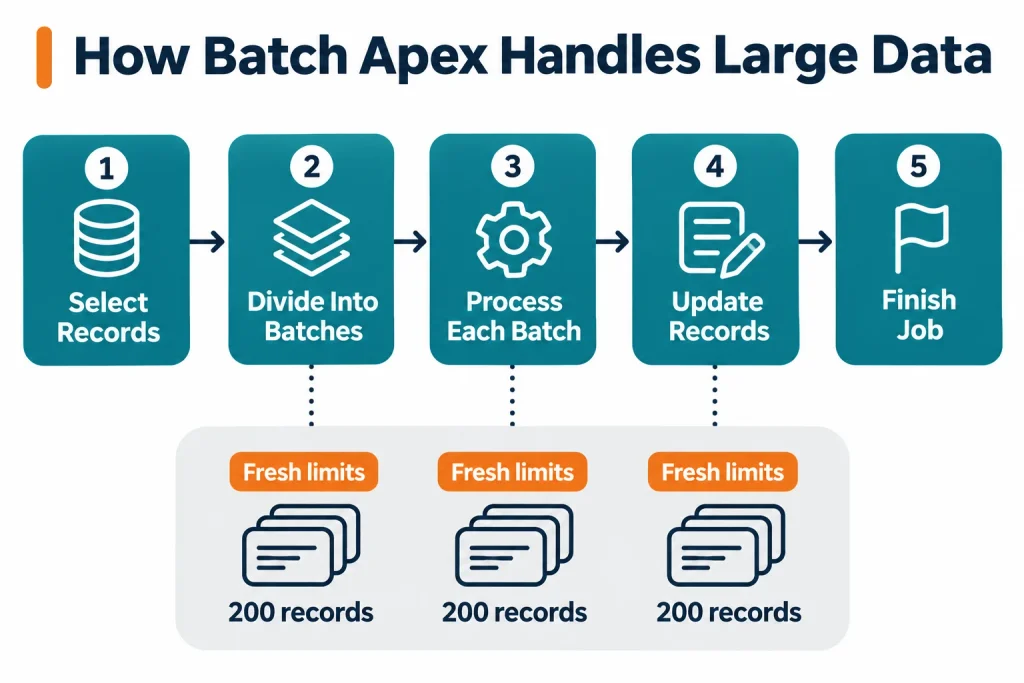
Batch Apex is useful when a process needs to handle a large number of records.
For example, imagine a business needs to update 500,000 Account records. Processing all records in one transaction could exceed query-row, CPU, or heap limits.
Batch Apex divides the work into smaller groups. Each execution of the batch execute() method receives a fresh set of per-transaction limits.
A basic Batch Apex structure looks like this:
global class AccountUpdateBatch
    implements Database.Batchable<SObject> {

    global Database.QueryLocator start(
        Database.BatchableContext bc
    ) {
        return Database.getQueryLocator(
            'SELECT Id, Description FROM Account'
        );
    }

    global void execute(
        Database.BatchableContext bc,
        List<Account> scope
    ) {
        for (Account acc : scope) {
            acc.Description = 'Reviewed';
        }

        update scope;
    }

    global void finish(Database.BatchableContext bc) {
        System.debug('Batch processing completed.');
    }
}
In this example, Salesforce retrieves Account records and processes them in batches. The default batch size is 200 records, although developers can specify a different size when executing the job.
Batch Apex is useful for large data updates, scheduled maintenance, and background processing. However, each batch execution must still follow the applicable governor limits.
Frequently Asked Questions
1. What are Governor Limits in Salesforce?
Governor Limits are runtime restrictions that control the resources an Apex transaction can use. They help maintain fair resource usage and platform performance in Salesforce’s multi-tenant environment.
2. What is the SOQL query limit in Salesforce?
The standard SOQL query limit is 100 queries per synchronous Apex transaction and 200 queries per asynchronous Apex transaction. Other query-related limits, such as retrieved rows, apply separately.
3. How many DML statements are allowed in Salesforce?
Apex allows 150 DML statements per transaction. The separate limit for records processed through DML is 10,000 records per transaction.
4. Can Salesforce Governor Limits be increased?
Most per-transaction Apex governor limits are fixed and cannot be increased by developers. Instead, developers should optimize their code, use bulk processing, or choose a suitable asynchronous approach.
5. Does Batch Apex have separate Governor Limits?
Each Batch Apex execute() method runs in its own transaction and receives a fresh set of per-transaction limits. This makes Batch Apex useful for processing large datasets in smaller groups.
6. How can developers check Governor Limits in Apex?
Developers can use the Apex Limits class, debug logs, and Salesforce monitoring tools to review resource consumption. Methods such as Limits.getQueries() and Limits.getCpuTime() help identify potential problems.
Conclusion
Salesforce Governor Limits play an important role in building reliable and scalable applications. They help developers manage shared platform resources while encouraging better Apex coding practices.
The most important habits are simple: avoid SOQL and DML inside loops, bulkify your code, use collections, monitor resource consumption, and choose asynchronous processing when the workload requires it.
Understanding these concepts will help you write Apex code that works not only with a few records but also as business data and automation grow.
If your Salesforce organization is facing performance issues or complex development challenges, the right implementation and optimization approach can make a significant difference. iBirds Software Services helps businesses with Salesforce development, implementation, integration, and platform optimization.