

Salesforce data migration is an important step when moving from an old CRM, spreadsheets, or another Salesforce organization. A successful migration helps businesses maintain accurate customer information, preserve record relationships, and continue their daily operations with fewer disruptions.
However, moving data is not simply about uploading a CSV file. Teams must prepare their source data, map fields correctly, handle duplicates, configure the destination Salesforce org, and verify the results.
In this guide, we explain the Salesforce data migration process, common challenges, available tools, and practical best practices to help you plan a reliable migration.
What Is Salesforce Data Migration?
Salesforce data migration is the process of transferring business information from an existing system into Salesforce or between Salesforce organizations.
The data may include accounts, contacts, leads, opportunities, cases, activities, custom objects, and files. The exact requirements depend on the organization’s business processes and the systems involved.
For example, a company moving from a legacy CRM may need to transfer customer details, sales history, open opportunities, and account relationships into Salesforce.
The objective is to move the required information into the correct Salesforce objects and fields while preserving its accuracy and business context.
Why Is Salesforce Data Migration Challenging?
Data migration can become complicated when the source and destination systems use different data structures, formats, and business rules.
Common challenges include:
- Duplicate records: The same customer may appear multiple times with slightly different details.
- Missing information: Important fields may contain incomplete or incorrect values.
- Incorrect field mapping: Source fields may not match Salesforce fields directly.
- Broken relationships: Contacts or opportunities may become disconnected from their related accounts.
- Automation conflicts: Validation rules, Apex triggers, and record-triggered flows may affect imported records.
- Permission issues: The migration user may not have access to the required objects or fields.
- Insufficient testing: Errors may remain undetected until the production migration.
These issues can affect reports, sales processes, customer service, and user confidence. A structured plan helps teams identify and resolve problems before they affect business operations.
Salesforce Data Migration: Step-by-Step Process
A successful migration follows a clear process, from identifying the required information to validating the final records.
1. Identify the Data You Need to Migrate
Start by preparing an inventory of the records, objects, fields, and files that need to be transferred.
Determine whether you need all historical information or only records relevant to current business operations. Consult the sales, service, finance, and other teams that use the data.
For example, a sales team may need accounts, contacts, leads, opportunities, and activities. A service team may also require case histories and related documents.
Identify the source of truth for each data category. If two systems contain different values for the same customer, decide which source should be trusted before migration begins.
2. Clean and Prepare the Source Data
Review the source data for duplicates, outdated records, missing values, and inconsistent formats.
Typical cleanup tasks include standardizing phone numbers, correcting email addresses, checking required fields, and identifying duplicate accounts or contacts.
Do not automatically delete every old record. Historical information may be necessary for reporting, compliance, or customer support. Confirm the retention requirements with the relevant business owners.
It is also important to review existing Salesforce fields and picklist values before preparing the import files. Our guide to Salesforce metadata cleanup explains why reviewing fields and picklists can help maintain a cleaner Salesforce environment.
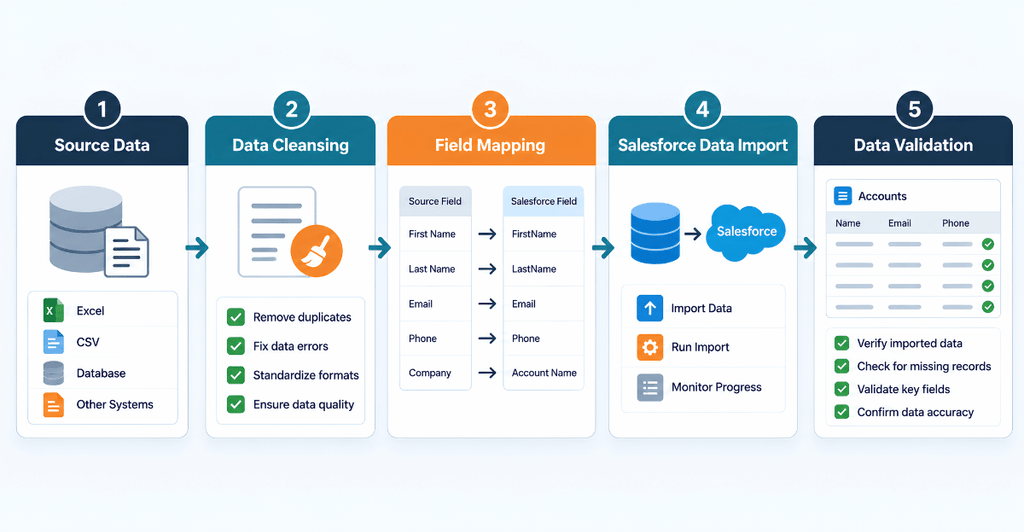
3. Map Source Fields to Salesforce Fields
Data mapping defines where information from the source system should be stored in Salesforce.
For example, an older CRM might use Customer_Name, while Salesforce uses the Account Name field.
Mapping also involves checking field types, required fields, picklist values, and field-length limits.
Two related concepts are important:
- Field mapping: Connecting a source field to the correct Salesforce field.
- Value mapping: Converting source values into the correct Salesforce values.
For example, a source system might use In Progress, while the Salesforce picklist uses Working. A value-mapping rule can convert the source value to the accepted destination value.
Document these mappings and review them with the business stakeholders before loading records.
4. Prepare the Destination Salesforce Org
Before importing records, make sure the target Salesforce org is ready to receive them.
Check that the required objects, fields, record types, and picklist values exist. Review validation rules, permissions, and automation that may affect the import.
Confirm that the migration user has the required object and field permissions. Test how Apex triggers and record-triggered flows behave during imports, rather than assuming that the migration tool will bypass automation.
If the project involves multiple systems or complex transformations, review the overall integration design as well. Our guide to building Salesforce integrations provides additional context on connecting Salesforce with other business systems.
For larger projects, a review of the org configuration and migration requirements can also help identify potential problems early. You can explore our Salesforce consulting services for support with planning and preparing a Salesforce environment.
5. Load Parent Records Before Dependent Records
Salesforce records often have relationships with other records. These relationships must be handled correctly during migration.
For example, a Contact can be associated with an Account, and an Opportunity can be associated with an Account.
A typical loading sequence may look like this:
- Accounts
- Contacts linked to those Accounts
- Opportunities linked to the correct Accounts
- Activities and other dependent records
- Additional related records and files, where required
The exact sequence depends on the objects and relationship types involved.
Where appropriate, use External ID fields to match source records with their corresponding Salesforce records. External IDs can support upsert operations, allowing Salesforce to create new records or update existing ones based on matching values.
Choose reliable identifiers and test the relationships before loading the full dataset.
6. Test the Migration in a Sandbox
Avoid making the first complete migration run in production.
Start with a small sample of records in a suitable sandbox or test environment. Check whether fields are mapped correctly, relationships are preserved, and automation behaves as expected.
Once the initial test is successful, perform a broader trial migration using representative data.
Ask business users to test real workflows. For example, a sales representative should be able to open an Account, view its Contacts, and find the correct Opportunities.
Record any issues, correct the migration process, and repeat the testing where necessary. This gives the team an opportunity to resolve problems before the production cutover.
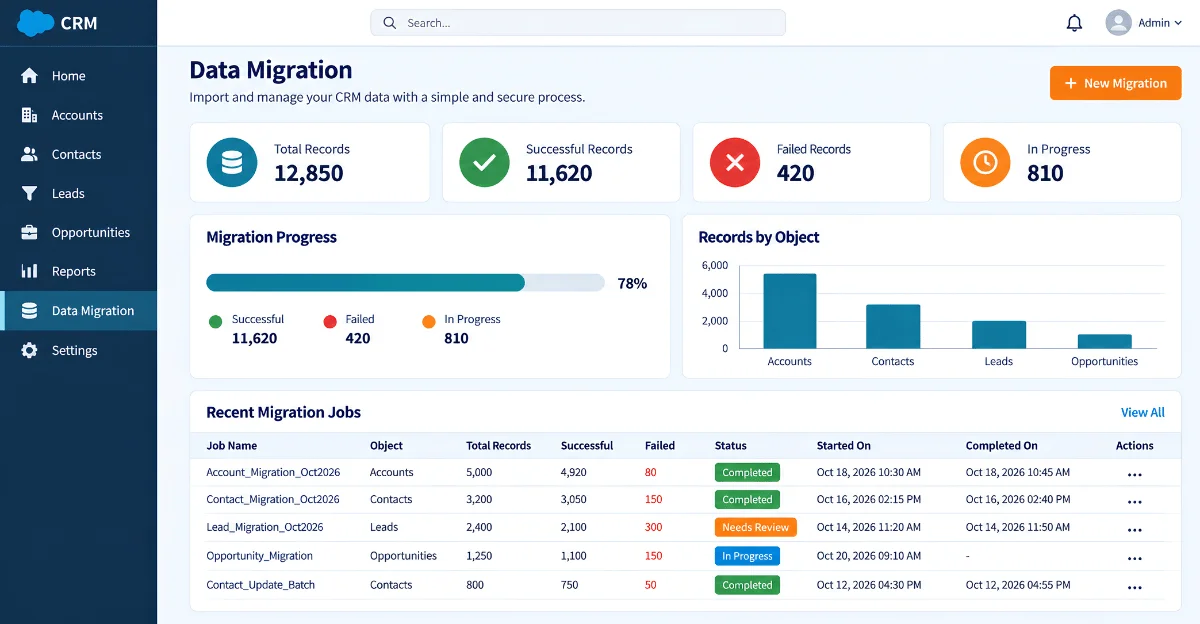
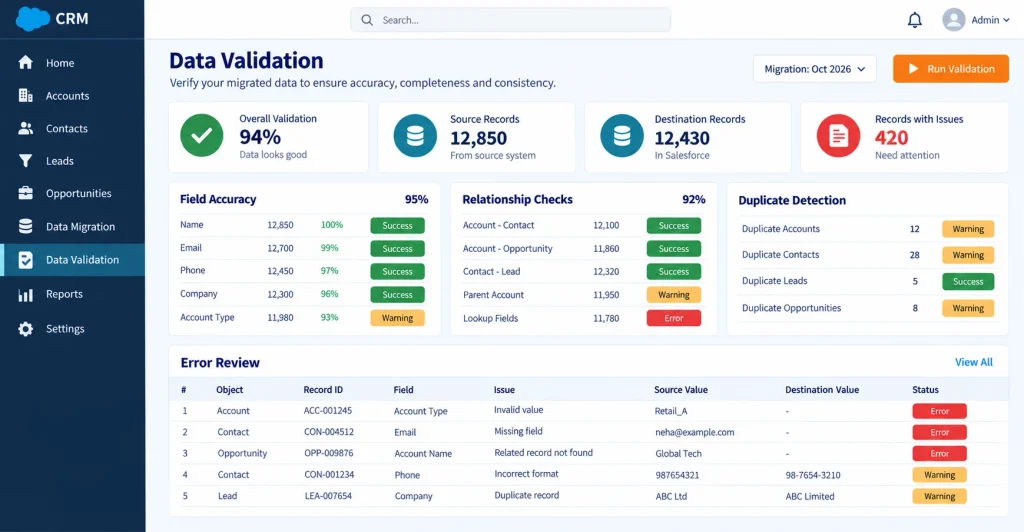
7. Validate Data After Import
A successful import does not automatically mean the migration is complete.
Compare source and destination record counts, inspect important field values, verify relationships, and review failed records. Check whether duplicate records were created and whether important reports show the expected results.
Keep error logs so that failed records can be investigated and reprocessed after correction.
Also, ask users to confirm that the migrated data supports their normal business processes. Technical validation and business validation should both be part of the final approval.
Salesforce Data Migration Tools Compared
The right tool depends on the volume and complexity of the data, the objects being migrated, and whether the migration is a one-time task or a recurring process.
| Tool | Best Use Case | Key Considerations |
|---|---|---|
| Data Import Wizard | Straightforward imports of supported objects | Browser-based interface with support for selected standard and custom objects |
| Salesforce Data Loader | More flexible imports, updates, exports, and deletes | Supports CSV-based operations and provides success and error files |
| Third-party ETL tools | Complex transformations or multiple source systems | May provide advanced mapping, repeatable workflows, and connections to external systems |
The Data Import Wizard is useful for straightforward imports when the objects and requirements are supported.
Salesforce Data Loader is more suitable when a project requires additional control over data operations, custom objects, exports, or repeatable loading processes.
Third-party ETL tools may be appropriate when information must be combined from several source systems or transformed through complex rules. Evaluate their features, security, cost, and maintenance requirements before choosing one.
For current tool capabilities and limitations, consult the official Salesforce Data Import Wizard documentation.
Salesforce Data Migration Validation Checklist
Use this checklist before approving the migration for production use.
| Validation Check | What to Verify |
|---|---|
| Record counts | Compare source and destination totals |
| Field values | Confirm important values were mapped correctly |
| Required fields | Check that mandatory information is present |
| Record relationships | Verify Account, Contact, Opportunity, and other required links |
| Duplicate records | Check whether duplicate records were created |
| Failed records | Review error logs and correct failed imports |
| Automation | Confirm relevant flows, triggers, and validation rules behave correctly |
| Reports | Check that important reports and dashboards show expected results |
| Business testing | Ask users to test essential business workflows |
| Recovery plan | Confirm backups and recovery procedures are available |
Salesforce Data Migration Best Practices
Follow these recommendations to make your migration more reliable:
- Define the scope early: Confirm which records, objects, fields, and files must be moved.
- Assign data owners: Identify the people responsible for approving data quality and business rules.
- Back up your data: Maintain a verified backup before performing imports or updates.
- Document field mappings: Record how source fields and values correspond to Salesforce fields and picklists.
- Preserve record relationships: Use appropriate identifiers and test lookup relationships before full migration.
- Test in stages: Begin with a small sample, continue with a broader trial, and validate before production.
- Monitor automation: Test how flows, triggers, and validation rules affect imported records.
- Keep error logs: Investigate failures and track corrected records.
- Plan the cutover: Assign responsibilities, define the migration window, and communicate potential disruptions.
- Prepare a recovery plan: Decide how to respond if unexpected migration issues occur.
For organizations connecting Salesforce to other applications, it is also useful to understand how integration design affects data consistency. Our article on understanding Salesforce integration explores how connected systems support more reliable business processes.
Frequently Asked Questions
What is Salesforce data migration?
Salesforce data migration is the process of moving records, files, and related information from a legacy system, spreadsheet, or another Salesforce org into a target Salesforce environment. It includes data preparation, mapping, importing, and validation.
Which tool is best for Salesforce data migration?
The best tool depends on the project. The Data Import Wizard is useful for straightforward imports, Data Loader supports more flexible data operations, and ETL tools can help with complex transformations or multiple source systems.
How can I migrate Salesforce data without losing information?
Back up the relevant data, document field mappings, test a sample migration, preserve record relationships, and validate the results. Keep error logs and a recovery plan in case problems occur.
Why are External IDs useful during migration?
External IDs help identify records using values from an external system. They can support upsert operations and help match related records. The identifiers should be reliable and appropriately unique for the intended matching process.
Should I clean data before migrating it to Salesforce?
Yes. Review duplicates, missing values, outdated records, and inconsistent formats before migration. Agree on cleanup rules with business stakeholders so useful historical information is not removed unintentionally.
How do I verify that a Salesforce data migration was successful?
Compare record counts, inspect important field values, check record relationships, review error logs, and test business workflows. The migration should preserve data integrity and allow users to perform their normal tasks.
Conclusion
Salesforce data migration requires more than moving records from one system to another. It involves understanding business requirements, cleaning source data, mapping fields, preserving relationships, choosing suitable tools, and validating the results.
A structured migration plan helps teams reduce avoidable errors and prepare their Salesforce environment for reliable day-to-day use.
For complex migrations involving multiple systems, custom objects, or automation, iBirds Software Services can help businesses plan their Salesforce projects and improve their CRM environment.