

Salesforce introduced Flow Approval Processes in early 2025 as a built-in way to manage approval requirements across different business processes. Earlier, Salesforce automation mainly included Workflow Rules, Process Builder, Approval Processes, and Salesforce Flow. Over the past few years, Salesforce Flow has become the main option for declarative automation.
This guide explains how to prevent issues with Flow Approval Processes and how Salesforce admins can debug and troubleshoot approval flows within their Salesforce org. Businesses managing complex customer processes can also use Salesforce Health Cloud Services to support approval and workflow requirements.
What Are Flow Approval Processes?
Flow Approval Processes provide a newer way to manage approval requirements, from simple approvals to more complex multi-level scenarios. Since their introduction in February 2025, Salesforce professionals have also questioned whether the traditional Approval Processes will eventually be deprecated.
Salesforce has not formally announced that the existing Approval Processes will be deprecated. However, the Approval Processes page now encourages admins to consider using Flow Approval Processes for new approval requirements.
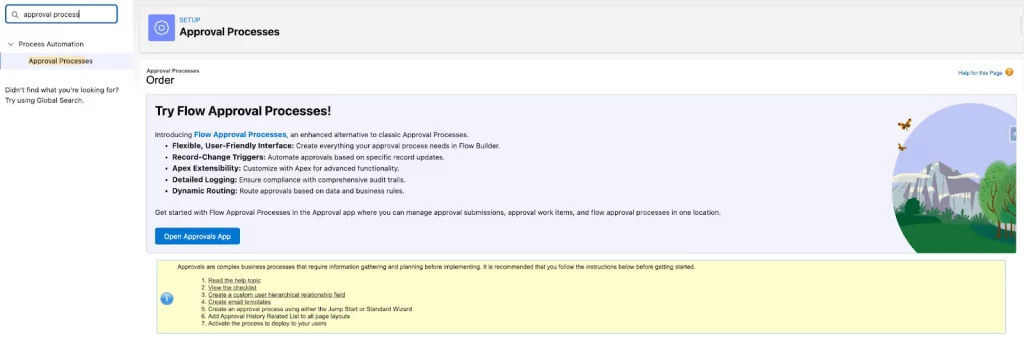

Before looking at debugging and troubleshooting options, it helps to understand the main components used by Flow Approval Processes:
- Flow Orchestration, which manages and coordinates the complete approval process. Unlike other Flow Orchestrations, approval orchestrations do not consume orchestration runs.
- Screen Flow(s), which allow users to complete approval steps and provide the required information. Within the orchestration, these are used as approval steps.
- Autolaunched Flow(s), which allow admins to control what happens next based on information received from the orchestration. These are used as background steps.
For example, an approval process can be created for the Product object in a business that sells baked goods. Required ingredients may be important for product approval, so a product requiring more than 10 ingredients could need a second approval in addition to approval from the bakery manager.
The approvals themselves can be handled through Screen Flows, while updates and other data operations can be managed through background steps. Decision Elements can also help control what happens based on different approval conditions.
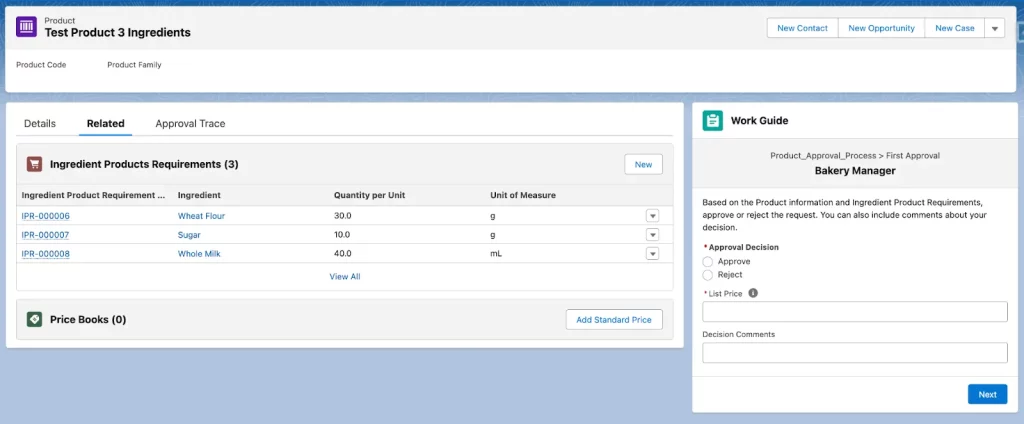
The user interface is different from the traditional approval experience, but it provides a more direct way for approvers to manage their tasks. The approval screen can be added to a Record Page through the Work Guide component, allowing the approver to view the required information in one place.
Approval history can also be displayed through the Approval Trace component when it is added to the page. This gives users a clearer view of the approval activity and its current status.
Prepare for the Unexpected
Like other Flows, approval processes created in Flow Builder should follow proper error-handling practices. This means preventing errors where possible and preparing for them when they occur. All possible scenarios should also be covered while building the process in a sandbox, followed by proper testing before deployment.
Salesforce Admins working with Flow Approval Processes can use two built-in options for this:
- Add a corresponding Fault Path to each Stage of the Flow Orchestration.
- Use the built-in Debug functionality to test the orchestration, available with the Winter ’26 release.
These error prevention and handling options may already be familiar, but Flow Approval Processes have some specific behaviors that are important to understand.
Fault Paths for Stages
Every Flow should include proper error handling. For example, what happens when a validation rule prevents an update? What happens when an operation fails unexpectedly?
Fault Paths are commonly used to handle these situations. The underlying Flows used by an approval process should also be designed with error handling in mind. However, Flow Approval Processes allow Fault Paths to be added within the orchestration itself.
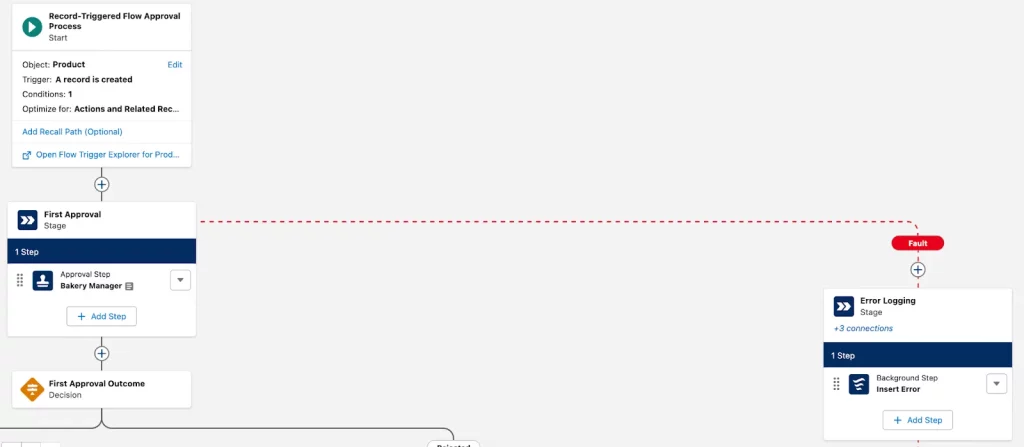
The key difference is that the Fault Path is added at the Stage level, rather than at the Step level. In the bakery example, the Flow Approval Process has a Fault Path that the Stages can point to. The actions connected to the Fault Path must also be contained within a Stage. In this example, a background step runs a reusable Autolaunched Flow that creates an error record.
Fault Paths should not automatically be added to every Stage. You first need to check whether a previous Stage contains an approval step. If a Stage includes an approval step and you add a Fault Path, check whether any approval items have already been completed. If none have been completed, another Stage with an approval step may be required.
The correct approach depends on your implementation, but the following scenarios should be considered to help prevent unexpected auto-approvals:
| Error Scenario | Final Approval Submission Status |
| The Stage where the error occurred has no configured Fault Path. | Error |
| The Stage where the error occurred has a configured Fault Path that runs without error. All completed approval work items are approved. | Approved |
| The Stage where the error occurred has a configured Fault Path that runs without error. At least one completed approval work item is rejected. | Rejected |
| The Stage where the error occurred has a configured Fault Path that runs without error. There are no completed approval work items. | Approved |
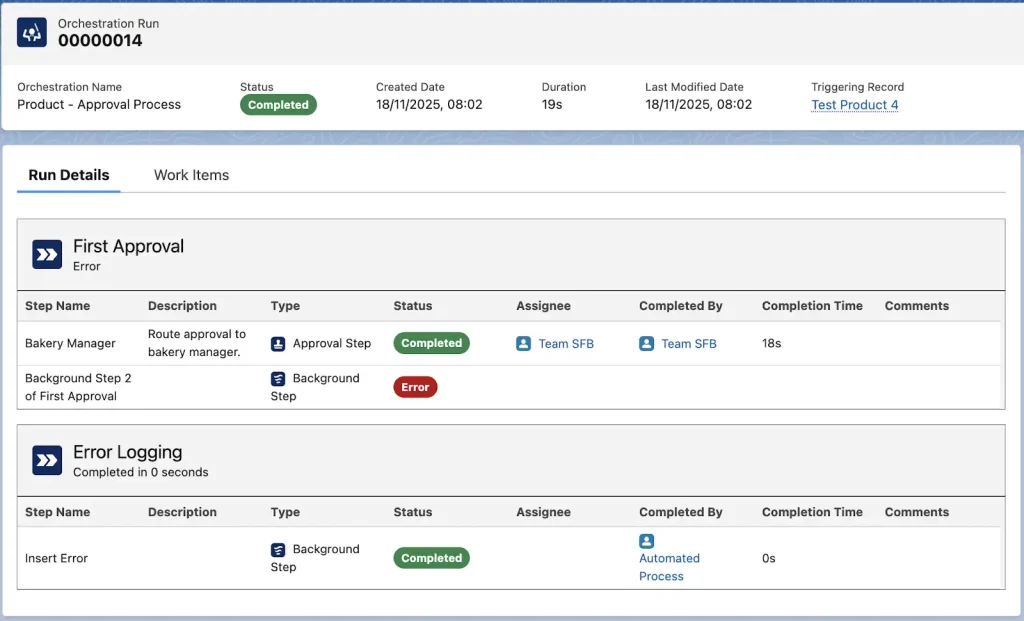
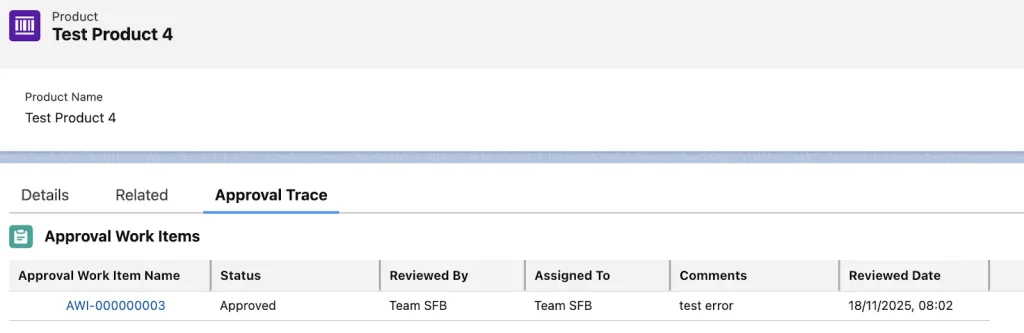
In the example Flow, the first Stage contains both an approval step and a Fault Path. This raises an important question: what happens if another step in the same Stage fails after the approval step has already been completed?
The result can be checked within the orchestration run, along with the outcome shown on the Approval Work Item and related Approval Submission. The background step failed, which triggered the Fault Path. The connected Autolaunched Flow then ran, and the Approval Item status was set to Approved as expected.
For organizations managing complex Salesforce automation and process requirements, Salesforce School Cloud Services can support structured Salesforce solutions and workflow requirements.
Debug Mode in Flow Approval Orchestrations
Fault Paths can help prevent issues and prepare for unexpected errors, but Debug Mode is another important feature for testing Flow Approval Processes before deployment. It helps Salesforce Admins identify problems and verify that an approval orchestration behaves as expected.
Available with the Winter ’26 release, the Debug button can be used after creating a Flow Approval Process to test the orchestration before users work with it. This can help identify errors before the flow is deployed.

Similar to other Flow types, clicking the Debug button opens Debug Mode. You can select the record you want to test and decide whether the flow should run in rollback mode.
Debug Mode makes it easier to test different approval scenarios without creating additional records or changing the Flow for every test. This is possible through manually set output values, which allow you to set variable values through a new Debug Configuration tab available on each Stage.
For example, if you need to test how an approval process behaves for products containing 5, 10, or 50 ingredients, you can set different values and test each scenario without creating separate records.

Once the values are configured, save the Flow version. These debug values remain available even after the Flow is activated. However, if you need to change the configured values, you must create a new Flow version.
After saving the configuration, run the orchestration and review the debug log details and behavior. Check whether the results match the expected approval outcome. If something does not work as expected, make the required changes in the Flow and run the test again.
For businesses that need to connect Salesforce processes with broader business systems, Enterprise Resource Planning Services can help support connected process and data requirements.
Final Thoughts
Whether you decide to migrate legacy Approval Processes to Flow Approval Processes or continue using your existing setup, Flow Orchestrations provide another option for handling complex approval requirements. Flow Builder makes it possible to create detailed approval scenarios using dedicated functionality and Flow Types, giving Salesforce Admins and professionals more control over approval processes.
Have you used Flow Approval Processes in Salesforce? Share your experience with us.
Frequently Asked Questions
1. What are Salesforce Flow Approval Processes?
Salesforce Flow Approval Processes provide a way to manage approval requirements using Flow Builder and Flow Orchestration. They can support simple approvals as well as multi-stage approval processes.
2. How can I troubleshoot Salesforce Flow Approval Processes?
You can troubleshoot Salesforce Flow Approval Processes by using Fault Paths, Debug Mode, orchestration run details, and approval work item results. Testing different scenarios can also help identify configuration issues.
3. What is a Fault Path in a Salesforce Flow Approval Process?
A Fault Path provides an error-handling route when an operation fails. In Flow Approval Processes, Fault Paths can be configured at the Stage level to handle errors within an orchestration.
4. What is Debug Mode in Flow Approval Processes?
Debug Mode allows Salesforce Admins to test an approval orchestration before deployment. Admins can select records, configure variable values, test different scenarios, and review debug results.
5. Can Flow Approval Processes handle multiple approval stages?
Yes. Salesforce Flow Approval Processes can support multiple approval stages and different approval requirements. Flow Orchestration can coordinate approval steps and background steps based on the process logic.
6. Can I test different approval scenarios without creating new records?
Yes. Debug Mode allows you to manually set output values for variables through the Debug Configuration settings. This makes it possible to test different conditions without creating separate records for every scenario.
7. What happens when a Flow Approval Process encounters an error?
The result depends on the Stage configuration and whether a Fault Path is available. The final Approval Submission status can be Error, Approved, or Rejected based on the completed approval work items and Fault Path behavior.
8. Should Flow Approval Processes be tested in a sandbox?
Yes. Testing approval scenarios in a sandbox helps identify configuration and error-handling issues before the process is deployed for users.