

Anyone who has worked with Salesforce for some time has likely come across different ways to share records. This is especially true for Salesforce professionals who manage security settings or prepare for certification exams. Record sharing is one of the most important parts of Salesforce because it helps businesses decide who can access data, update records, and collaborate across departments.
Salesforce provides many ways to manage record access, which may make organizations wonder why so many options exist. The reason is simple: every business handles customer data differently. Some companies need strict privacy controls, while others require flexible collaboration between multiple teams. Salesforce supports both simple and highly detailed sharing frameworks, allowing organizations to manage access based on business requirements. This level of flexibility gives Salesforce teams stronger control over data privacy, visibility, and user permissions.
For organizations managing complex operations, creating the right sharing model becomes even more important. Businesses using Salesforce Sales Cloud Services often build customized sharing frameworks to improve collaboration without affecting security or compliance requirements.
How Can You Share a Record in Salesforce?
Before moving further, it is important to understand what people mean when they say “share a record” in Salesforce. Record sharing can have different meanings depending on business needs and user requirements.
It could mean:
- Granting access to Salesforce standard or custom object records managed by admins.
- Providing record access based on criteria or manual selection depending on business needs.
- Drawing attention to a record so other team members can collaborate.
- Sharing limited information from a record without exposing full details.
Before we move further, here is a quick overview of the sharing methods covered in this article:
- Account, Opportunity, and Case Teams
- Apex-Based Record Sharing
- Chatter
- Dashboard “Viewing As”
- Data Category Groups
- Delegated Group (Delegated Administrator)
- Enterprise Territory Management
- External Account Hierarchies
- Flow-Based Record Sharing
- Manager Groups
- Manual Sharing
- Master-Detail Relationships
- Org-Wide Default
- Permission Set Groups
- Permission Sets
- Personal Groups
- Print a Dashboard
- Profile
- Public Groups
- Record Owners
- Report Subscribe
- Role Hierarchy
- Salesforce Queues
- Screen Flow
- Share a Record via Slack
- Share Group
- Sharing Rules (Use Roles and Public Groups)
- Sharing Sets (Site-Specific Sharing)
- Super User Access
How Admins Can Share Records in Salesforce (Access Objects and Records)
Salesforce Admins work as the control center of a Salesforce environment. They manage permissions, field-level security, and record visibility to make sure users only access the information relevant to their role. By combining access settings such as Create, Read, Edit, Delete (CRED), along with security configurations, admins can build a sharing structure that supports both collaboration and data privacy.
The way relationships are built between objects can also influence record visibility. In many situations, users automatically gain access to connected records depending on how the data model has been configured.
This framework can become highly detailed, which is why skilled Salesforce Admins play an important role in maintaining secure and efficient Salesforce environments. Businesses working with Salesforce Implementation Services often create carefully structured access models to improve operational efficiency without exposing sensitive information.
Profile: Control What Users Can Do in Your Salesforce Org
Profiles control what users are allowed to do inside Salesforce. This is commonly referred to as CRED permissions (Create, Read, Edit, Delete). For example, a business may allow sales representatives to read and edit Lead records but restrict delete access to avoid accidental data removal. Profiles help admins decide what actions different users can perform across standard and custom objects.
For organizations handling sensitive customer records, profiles help maintain stronger security while keeping workflows organized.
Permission Sets
Permission Sets work as an extension of profiles and give admins more flexibility when assigning access. Instead of changing an entire profile, admins can provide additional permissions to selected users whenever needed.
Permission Sets may include access to objects, field-level security, page layouts, record types, tabs, and apps. This approach becomes useful when only a small group of users needs extra access.
Many organizations using Salesforce Financial Cloud Services prefer this setup to control visibility for financial records without changing access for all users.
Permission Set Groups
Permission Set Groups help simplify permission management by combining multiple Permission Sets into a single group. Instead of assigning permissions one by one, admins can manage related permissions together.
Another important feature is Muting Permission Sets, which allows organizations to turn off specific permissions inside a group without editing the original Permission Sets directly. This creates better flexibility while reducing administrative work.
Org-Wide Defaults (OWD)
Org-Wide Defaults define the baseline visibility level for records in Salesforce. Inside the Sharing Settings page, admins can decide how records should be accessed across the organization.
Depending on business needs, organizations may choose private access, public read-only access, or public read/write visibility. OWD settings act as the foundation of Salesforce security and help businesses maintain better control over data access.
Role Hierarchy
Role Hierarchy helps organizations extend record visibility beyond Org-Wide Defaults. It works by following the reporting structure of a business.
For example, a VP of Sales may sit above Sales Managers, while Sales Managers oversee representatives. Through role hierarchy, managers can receive visibility into records owned by users below them.
This setup improves reporting and team oversight while maintaining structured access across departments.
Master-Detail Relationships
Master-detail relationships create a strong connection between parent and child records. In this relationship model, child records automatically inherit sharing settings and visibility from the parent record.
For example, if access permissions change for the parent record, those same permissions apply to related child records. This helps organizations maintain consistency without configuring security repeatedly.
Businesses using Salesforce Health Cloud Services often rely on carefully structured record relationships to help manage connected patient and healthcare data securely.
How to Share a Record (By Criteria or Choice)
This section focuses on sharing methods that allow records to be shared based on criteria or manual selection. Both Salesforce Admins and users with the correct permissions can use these methods depending on business requirements.
Record Owners
Every record in Salesforce has an owner. This owner can either be a specific user or a queue. Ownership clearly identifies who is responsible for a customer relationship or business process connected to the record.
Becoming a record owner also gives additional rights, including the ability to share records. Record ownership acts as a foundation for many Salesforce sharing methods and plays an important role in controlling access.
Sharing Rules
Sharing Rules help expand access beyond Org-Wide Defaults. Similar to Role Hierarchy, they help organizations open record visibility, but not only in vertical reporting structures.
Admins can create Sharing Rules based on who owns the record or based on record criteria. This makes it easier to share information across departments while keeping security settings controlled.
Manual Sharing
Manual Sharing allows users to share specific records directly with selected individuals. Instead of opening access broadly, users can grant visibility on a case-by-case basis.
This option becomes useful when temporary access is required for collaboration or support purposes.
Delegated Group (Delegated Administrator)
Delegated Groups allow selected users to perform limited administrative tasks without receiving full System Administrator access.
For example, delegated admins may log in as other users to troubleshoot issues or manage selected responsibilities. This setup helps businesses distribute admin work while keeping stronger security controls.
Salesforce Queues
Salesforce Queues help teams prioritize and distribute workloads. Records stay inside queues until users take ownership of them, making queues function like holding areas for work.
Admins can choose queue members, and users higher in role hierarchy can also take ownership when necessary. Leads and Cases commonly support queues, but custom objects may also use them.
Organizations using Enterprise Resource Planning Services often rely on structured queue systems to improve operational efficiency between multiple teams.
Account, Opportunity, and Case Teams
Account, Opportunity, and Case Teams allow multiple users to collaborate on business processes together. Team members and their responsibilities appear in related lists added to page layouts.
Businesses can also enable default teams so that selected users automatically receive access whenever records are created or transferred.
For Account Teams specifically, admins can further define access for related child records, helping teams collaborate more effectively in one place.
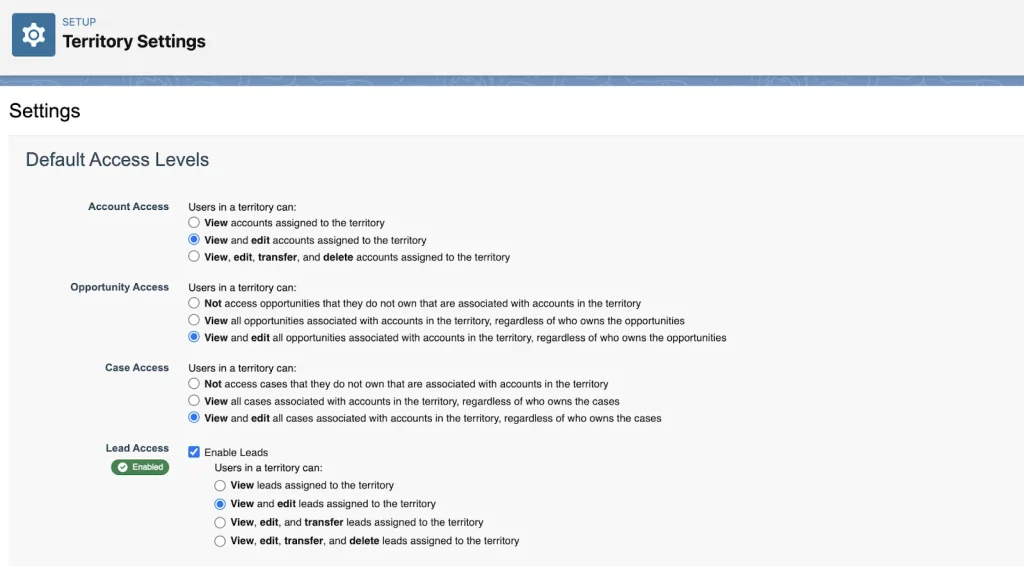
Sales Territories (Formerly Enterprise Territory Management)
Sales Territories is an advanced Salesforce feature designed for businesses managing multiple regions or complex sales structures.
Admins define territory models, territory types, and individual territories while managing access across enabled objects. Because this feature affects permissions significantly, organizations should review configurations carefully.
Companies working with Salesforce Solution for Hospitality often use structured territory models to improve customer and service management across locations.
Public and Personal Groups
Public Groups are created by admins and can be used across the organization, while Personal Groups are created individually by users.
Both types of groups may include individual users, territories, roles, or even other groups. This provides flexibility for managing access without changing organization-wide settings.
Manager Groups
Manager Groups are designed for sharing records across management chains. Instead of granting access to all managers with the same role, these groups allow visibility for indirect managers when necessary.
This improves collaboration while keeping access controlled.
Data Category Groups
Data Category Groups help organize Knowledge Articles in Salesforce, similar to folders. They allow organizations to group content into categories and manage visibility more effectively.
Permission Sets can also control category visibility for selected users. Although Lightning Knowledge sharing has evolved over time, Data Category Groups still remain useful for organizing and categorizing content.
How to Share a Record With Experience Cloud Users
Experience Cloud users often require a different sharing setup compared to internal Salesforce users. Since external users usually have limited access, Salesforce provides multiple ways to manage visibility securely while still allowing customers, partners, or community users to access relevant information.
The sharing methods below are designed specifically for digital experiences where organizations want external users to access records without exposing unnecessary business data.
Sharing Sets (Site-Specific Sharing)
Sharing Sets are the standard out-of-the-box mechanism used to extend access for Experience Cloud users. This method allows admins to provide record visibility based on related Account IDs or Contact IDs, making access more personalized and secure.
For example, if a custom object is connected to a Contact record and external users need access to related information, Sharing Sets become one of the most effective ways to manage visibility. Instead of manually granting access, Salesforce automatically determines which records users can view based on relationships already configured inside the system.
Organizations working with Salesforce School Cloud Services often use sharing structures like these to help students, parents, or staff access only relevant information connected to their profiles.
Share Groups
Share Groups are designed to support record sharing in digital experiences with very large numbers of users. This becomes especially useful when high-volume site users own records but do not follow traditional role hierarchy structures.
Since these users typically do not have roles assigned to them, admins can enable Share Groups through Setup to help facilitate access management. This approach helps organizations maintain better scalability while managing large external user communities.
External Account Hierarchies
External Account Hierarchies work similarly to Salesforce role hierarchies but are designed for external account relationships.
In this setup, account records owned by users connected to child accounts can share visibility with parent accounts inside the hierarchy. This improves collaboration between business partners while keeping record access structured and controlled.
This functionality generally requires a Partner Community or Customer Community Plus license, depending on business requirements.
Organizations managing partner relationships through Salesforce Financial Cloud Services often benefit from structured account visibility between external stakeholders.
Super User Access
Super User Access allows partner users to gain broader visibility into records beyond normal sharing settings and organization-wide defaults.
This option helps selected users access more information without requiring repeated permission changes. Since partner ecosystems often require stronger collaboration, Super User Access helps improve operational efficiency while maintaining secure access management.
Like External Account Hierarchies, this functionality generally requires a Partner Community or Customer Community Plus license.
Custom Ways to Share Records
Sometimes standard Salesforce sharing options may not fully support business requirements. In these situations, organizations can create custom sharing frameworks to manage access in more advanced ways.
Instead of relying only on built-in features, businesses can create their own sharing logic based on automation or code to handle more detailed requirements.
Flow-Based Record Sharing
When it comes to Salesforce automation, Salesforce Flow plays a major role in simplifying business processes. It has become one of the most powerful declarative tools available to admins, making advanced record sharing possible without depending entirely on code.

For example, admins can use a Record-Triggered Flow to automatically manage sharing whenever specific conditions are met.
Imagine an Opportunity gets created and includes a user inside the Customer Success Manager lookup field. Salesforce can automatically create a new Opportunity Share record for that user and assign Read/Write access to the opportunity.
In earlier Salesforce environments, this type of customization often required code from the beginning. Today, Flow provides a more flexible and admin-friendly solution for managing advanced record-sharing requirements.Businesses using Salesforce Implementation Services often use Flow automation to reduce manual work and improve sharing consistency across departments.
Apex-Based Record Sharing
Sometimes even advanced declarative solutions may not fully meet business requirements. In these situations, developers can use Apex-based sharing to build highly customized sharing frameworks.
Apex allows organizations to create advanced sharing logic that supports complex business rules, integrations, and highly detailed access requirements.
This approach becomes useful for businesses that require stronger flexibility beyond Salesforce’s standard sharing capabilities.
Share Record Details Within Screen Flows
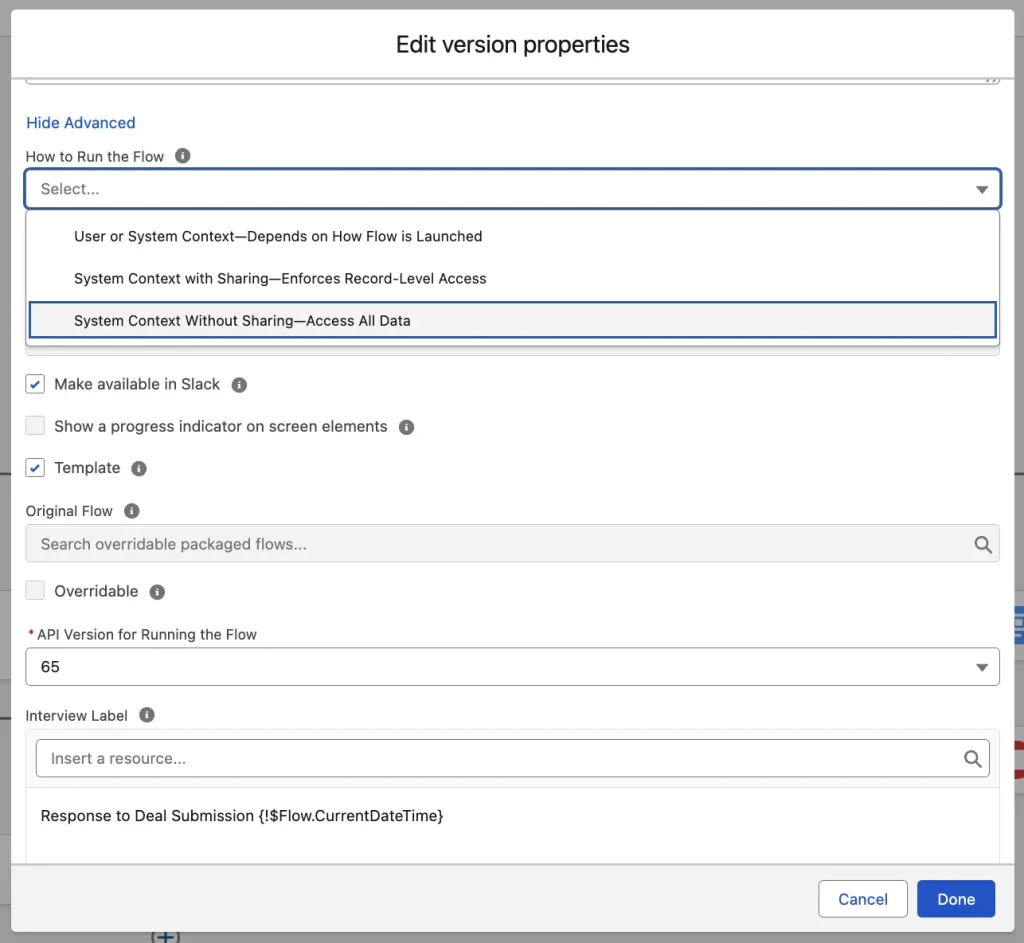
Another way Salesforce teams can share record information is through Screen Flows. Unlike direct record sharing, this method creates an in-flow view of data that users may not normally have permission to access.
Instead of granting full visibility to the actual record, Screen Flows allow organizations to expose only selected information inside a guided interface.
However, this method should be used carefully because it changes how flow context works and can affect security behavior. In some cases, Screen Flows also allow users to update selected information while still keeping access controlled.Organizations working with Salesforce Health Cloud Services often use guided experiences like Screen Flows to simplify secure access to important record information while protecting sensitive data.
Alternative Ways to Share Record Data
Beyond standard system-based sharing methods, Salesforce also offers different ways for users to share record information by drawing attention to records instead of changing permissions directly. In many situations, teams simply need visibility into important updates, reports, or dashboards without adjusting access settings.
Below are some alternative ways Salesforce users share record-related information while improving collaboration across teams.
Chatter
Chatter is a built-in collaboration tool available inside the Salesforce interface. Similar to a social media platform, it helps users communicate and collaborate around records without leaving Salesforce.
Users can post updates, leave comments, tag coworkers, and use @mentions to draw attention to important records. This makes collaboration faster and helps teams stay connected around customer activity, opportunities, or service cases.
For businesses managing multiple departments, Chatter can improve communication without depending on long email chains.
Organizations working with Salesforce Solution for Hospitality often use collaboration tools to improve coordination between customer service, operations, and sales teams.
Subscribe to a Report
Salesforce users can subscribe to reports and receive report snapshots directly through email at a selected frequency.
This option helps users stay updated on business performance without manually checking dashboards every day. Teams can also create reports knowing that important information will automatically reach stakeholders who need regular visibility.
For organizations handling performance tracking or customer insights, report subscriptions provide a simple way to improve data sharing.
Dashboard “Viewing As”
Dashboards inside Salesforce work based on a selected viewing user.
The information shown on the dashboard depends on that user’s permissions and visibility settings. This allows businesses to present relevant insights without exposing unnecessary data to everyone.
By controlling who dashboards display data for, organizations can maintain stronger access management while improving reporting visibility.
Print a Dashboard
Although digital reporting is widely used, some businesses still prefer printed dashboard reports for meetings, presentations, or internal discussions.
Printing dashboards provides another simple way to share Salesforce information with teams, especially when offline access is preferred.
Share Records via Slack
Salesforce records can also be shared directly through Slack conversations or channels.
Once users choose a record, Salesforce displays high-level record information so they can confirm details before sharing. After verification, records can be shared quickly with teammates to improve collaboration and communication.
Businesses using Enterprise Resource Planning Services often rely on connected collaboration between systems and teams to improve operational workflows.
Summary
There you have it — more than 25 ways to share a record in Salesforce. From Permission Sets and Sharing Rules to Experience Cloud sharing and Apex-based customization, Salesforce offers strong flexibility for organizations managing different sharing requirements.
Every business handles customer data differently, which is why Salesforce supports multiple sharing models to help organizations maintain visibility, privacy, and collaboration. Whether you need simple access control or highly detailed sharing frameworks, Salesforce provides options that support almost every business requirement.
Organizations using Salesforce Implementation Services often build customized sharing structures to improve security, user productivity, and operational efficiency across departments.
Which of these sharing methods have you used before, and which ones are new to your Salesforce journey? Let us know in the comments below.
FAQs About Sharing Records in Salesforce
Q1. What are the different ways to share records in Salesforce?
Salesforce provides more than 25 ways to share records, including Profiles, Permission Sets, Sharing Rules, Manual Sharing, Role Hierarchy, Salesforce Queues, Public Groups, Experience Cloud Sharing, Salesforce Flow, and Apex-based sharing. The right method depends on business requirements and security needs.
Q2. What is record sharing in Salesforce?
Record sharing in Salesforce is the process of controlling who can view, edit, or access specific records inside the CRM. It helps businesses maintain data security while allowing teams to collaborate efficiently.
Q3. What is the difference between OWD and Sharing Rules in Salesforce?
Org-Wide Defaults (OWD) define the baseline access level for records across the organization, while Sharing Rules expand access beyond OWD by allowing records to be shared based on ownership or specific criteria.
Q4. Can Salesforce records be shared automatically?
Yes, Salesforce records can be shared automatically through Sharing Rules, Salesforce Flow, Role Hierarchy, Account Teams, Opportunity Teams, and Apex automation depending on business requirements.
Q5. What is manual sharing in Salesforce?
Manual sharing allows users to share a specific record directly with selected individuals without changing organization-wide security settings. It works well for temporary collaboration needs.
Q6. How do Salesforce Queues help in record sharing?
Salesforce Queues help distribute records among teams by placing records in a shared queue until someone takes ownership. This method is commonly used for Leads, Cases, and custom objects.
Q7. What are Sharing Sets in Salesforce Experience Cloud?
Sharing Sets allow external users in Experience Cloud to access records based on their related Account ID or Contact ID. This helps organizations securely manage customer or partner access.
Q8. When should businesses use Apex-Based Record Sharing?
Businesses should use Apex-Based Record Sharing when standard Salesforce sharing methods cannot meet complex business requirements. Apex helps developers create advanced custom sharing logic.
Q9. How does Role Hierarchy work in Salesforce?
Role Hierarchy allows managers to access records owned by users below them in the organizational structure. This helps leadership teams monitor activities while maintaining controlled visibility.
Q10. Why is record sharing important in Salesforce?
Record sharing is important because it helps businesses protect sensitive information, improve team collaboration, manage customer data securely, and ensure users only access relevant records.