

New Flow Version Comparison Tool: A Game-Changer for Salesforce Admins
If you’ve spent enough time building Salesforce Flows, you already know how difficult version tracking can become. A small update to a Decision element may feel easy while making the change, but after a few weeks, remembering exactly what was modified often turns into a challenge. Many Salesforce Admins end up opening multiple Flow versions side by side, trying to identify which update caused a process to behave differently.
This situation becomes even more frustrating when a Flow grows through continuous testing and improvements. A simple automation can quickly expand into multiple versions as admins test logic, update record conditions, adjust paths, or refine actions. After several rounds of edits, keeping track of every adjustment manually becomes time-consuming and increases the chance of confusion during troubleshooting.
For Salesforce professionals managing complex automation, version control has always been one of the most overlooked productivity challenges. Teams working on multiple automation projects frequently struggle to compare changes efficiently, especially while maintaining process accuracy across environments. This is where structured Salesforce solutions, including Salesforce Health Cloud Services, become valuable for organizations handling sensitive workflows and process automation requirements.
Thankfully, Salesforce has introduced the Flow Version Comparison Tool, making version tracking much easier for admins and developers. Instead of relying on memory or manual notes, users can now compare Flow versions and quickly understand what changed between them. In this article, we’ll cover how the Salesforce Flow Version Comparison feature works, what insights it provides, and how teams can use comparison results for better collaboration and Flow management.
Do We Even Need This?
Absolutely. The biggest challenge usually starts when the latest version of a Salesforce Flow suddenly stops working as expected. Fixing the issue often means going back through older versions, checking configurations, and trying to figure out which version handled the process correctly. For many Salesforce Admins, this becomes a frustrating and time-consuming task, especially when several updates have already been made to the same automation.
One of the most common problems in Salesforce Flow Version Management is dealing with too many versions of the same Flow. During testing, admins frequently update conditions, actions, variables, and logic paths multiple times before finalizing automation. While adding detailed descriptions during every update helps maintain some clarity, descriptions alone rarely provide a complete picture of what was actually modified between versions.
Version overload has remained one of the biggest pain points for Salesforce Flow builders for years. Even well-documented Flows can become difficult to manage once multiple edits stack up over time. Small changes to automation logic may look harmless initially, but identifying those exact updates later often becomes unnecessarily complicated.
This challenge is exactly why the Flow Version Comparison Tool was introduced. Salesforce recognized that admins and developers needed a faster way to compare Flow versions without depending entirely on memory, notes, or manual investigation. Instead of guessing what changed, teams can quickly review differences between versions and identify updates with greater accuracy.
For organizations managing large-scale CRM processes, maintaining clean automation becomes even more important. Teams handling academic workflows through Salesforce School Cloud Services often rely on multiple automation layers, making proper Flow version tracking essential for maintaining smooth operations.
Until recently, comparing Salesforce Flow versions was far from efficient. The Salesforce community had consistently highlighted the need for a simpler comparison process, and recent platform updates have finally addressed one of the most requested Flow management improvements.
Using the Flow Version Comparison Tool
The Flow Version Comparison Tool can now be accessed from more than one place inside Salesforce, making version tracking much easier for admins and developers. Users can compare Flow versions directly from the Flow Builder as well as through the Automation App, giving teams more flexibility while reviewing automation updates.
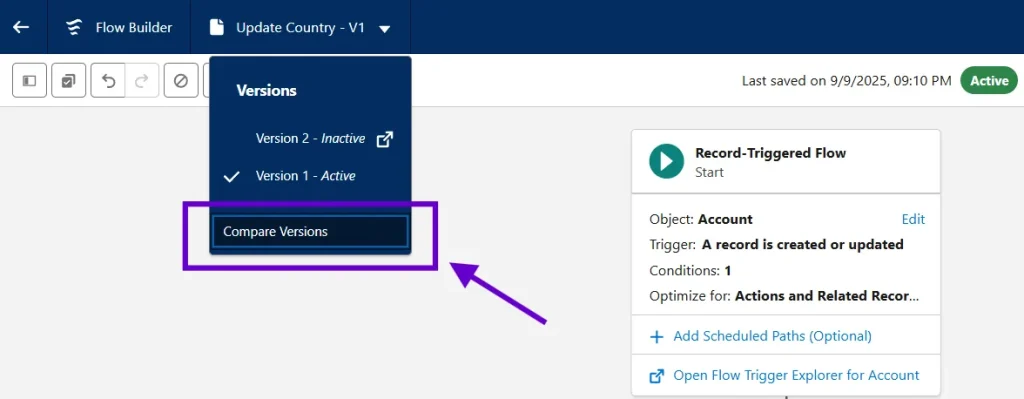
Inside the Flow Builder, opening the dropdown menu that displays all Flow versions now includes a dedicated option for comparing versions. This makes it easier to review changes without manually opening each version separately and trying to identify updates one by one.
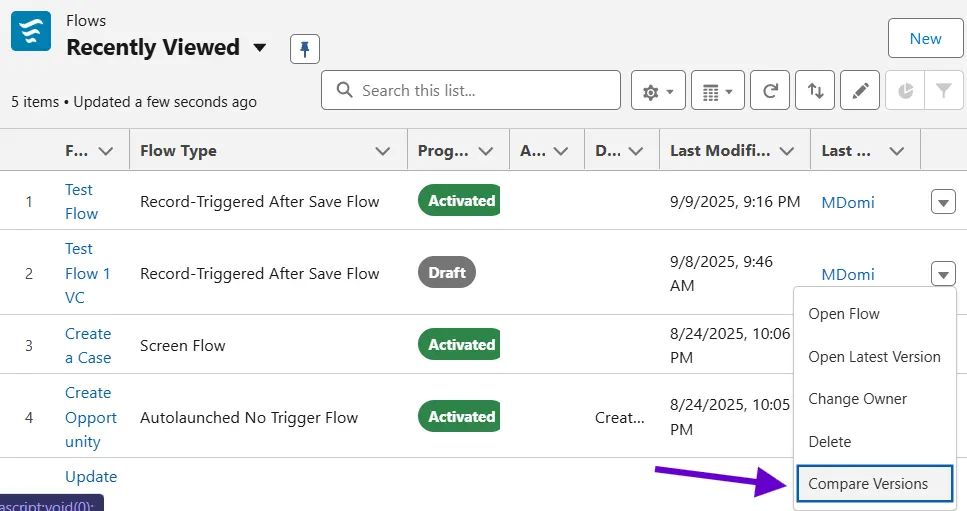
The same functionality is available through the Automation App. From the Flows list view, users can select the dropdown beside a Flow and access the Compare Versions option, provided the Flow is not active and contains at least two available versions. This small addition significantly reduces the effort required to manage multiple automation updates.
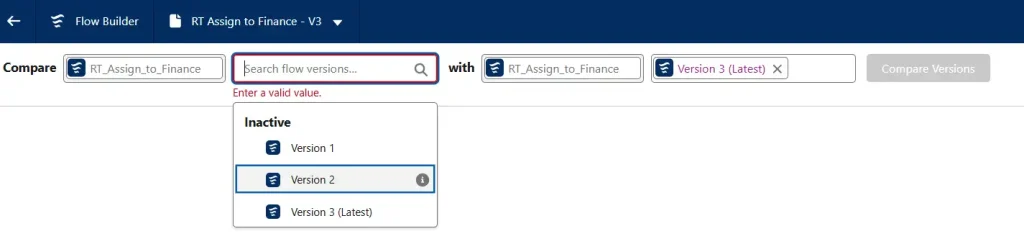
After selecting the comparison option, Salesforce asks users to choose the versions they want to review. Typically, one version acts as the base Flow, while the newer version becomes the target Flow. This side-by-side comparison helps admins understand exactly what modifications were introduced during recent updates.

Once users click Compare Versions, Salesforce generates a comparison overview that highlights important details between the selected Flow versions. The results header immediately provides a summary of key changes, helping teams review updates faster without manually inspecting every element.
Some of the most useful details included within the comparison results are:
- Analysis Time – Displays when the comparison was generated.
- Last Modified Details – Shows who updated the target Flow and when those changes were made.
- Flow Status Information – Displays the status of both selected versions.
- Added Items – Highlights new elements or resources introduced in the target Flow.
- Updated Items – Displays modified properties that were changed between versions.
- Changed Connectors – Identifies updates in how Flow elements connect, even if the element itself remains unchanged.
Removed Items – Shows resources or elements removed from the base version.

Apart from the summary, Salesforce also provides a detailed comparison table showing every change between both versions. Admins can review modification types, updated Flow resources, and API names, making troubleshooting and Flow auditing much more structured.Salesforce determines whether an element is new, updated, or removed based on technical identifiers rather than visual appearance. Every Flow element has its own API name and element type, which Salesforce uses to recognize changes.
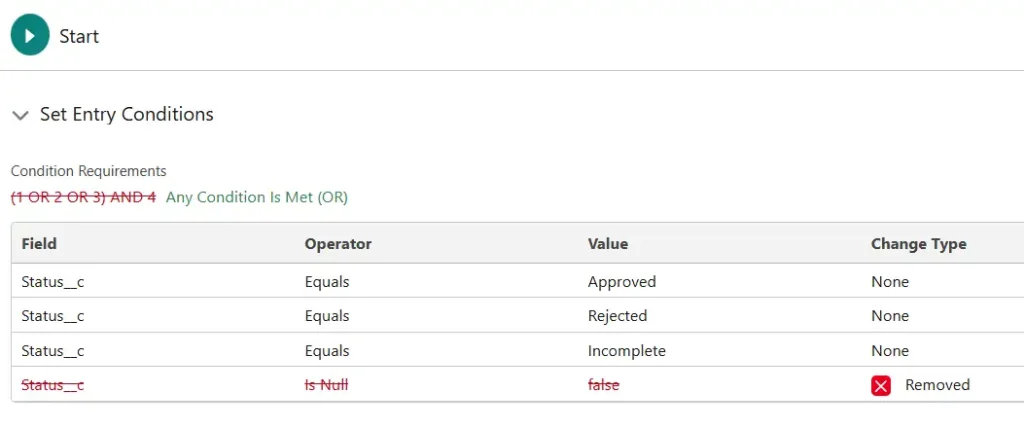
For example, if a Decision element is replaced with an Assignment element while keeping the same API name, Salesforce interprets that as one element being removed and another being added. Similarly, changing an API name results in Salesforce treating it as a different component entirely. This technical approach improves accuracy when comparing Salesforce Flow versions.Organizations handling complex workflows, especially educational institutions using Salesforce School and University Cloud Services, often manage large automation systems. Having a structured comparison process helps teams identify updates faster and maintain process consistency without unnecessary manual checks.
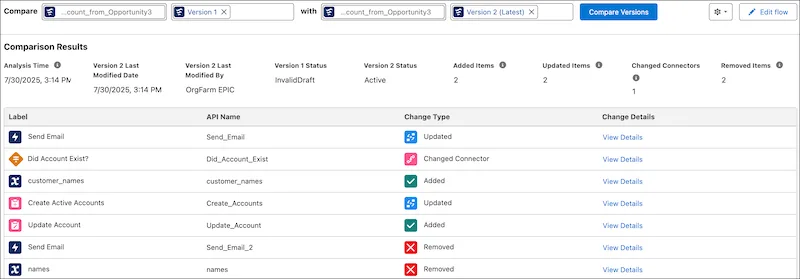
Users can also access more detailed information by selecting View Details from the comparison results. This allows admins to review modifications within individual elements or resources. For instance, condition logic may have shifted from custom logic to simplified OR conditions, or validation checks may have been removed. Salesforce presents these updates visually, making differences easier to identify during review.
For simple Flows, comparison results may only show a few changes. However, complex automation with multiple paths, record actions, and conditional logic can generate far more detailed comparison insights.
If both selected Flow versions are exactly the same, Salesforce simply does not generate comparison results because there are no differences to display.
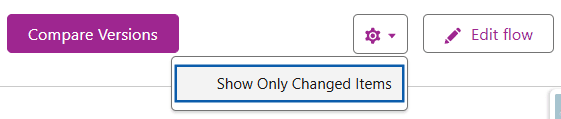
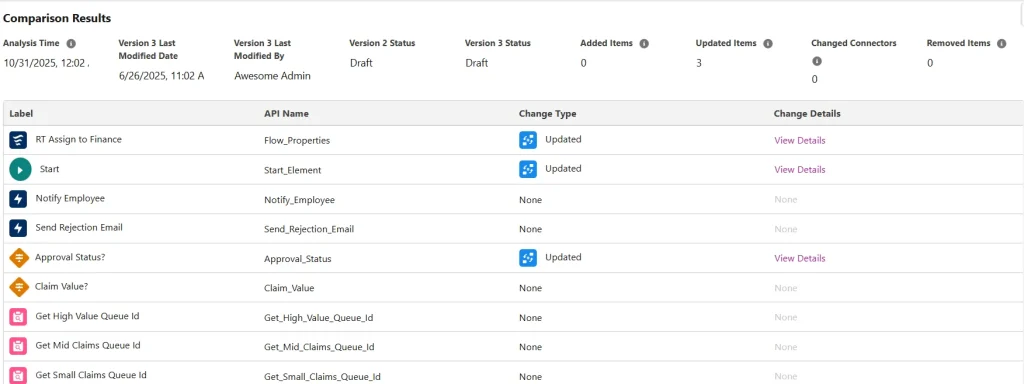
By default, the comparison table only displays changed items. However, users can modify the view settings and choose to display all Flow elements, including unchanged components. Even with expanded visibility, identifying modified elements remains simple because Salesforce clearly labels every update under the Change Type column.
Limitations
While the Flow Version Comparison Tool offers a much better way to review Salesforce Flow changes, there are still a few limitations users should keep in mind. The comparison feature works well for most Flow components, but the Details View does not currently support every element type or data structure available inside Salesforce.
At the moment, some Flow components may not display complete comparison details. Salesforce currently has limited visibility for certain elements, which means admins may occasionally need to manually review parts of a Flow for deeper validation.
Some of the unsupported areas currently include:
- Transform Elements – Detailed comparison data for Transform elements is not fully available.
- Transform View Inside Actions – Action-based Transform configurations may not display complete change information.
- Related Records Retrieved Using Get Records – Data fetched through specific Get Records configurations may have limited visibility in comparison results.
- AI Logic for Decision Elements – AI-driven logic connected with Decision elements is not yet fully supported in the details panel.
Whenever Salesforce cannot fully interpret or display a supported data type, the system typically marks that information as an “Unviewable Value” instead of showing detailed change tracking.
Although these limitations exist, they do not significantly reduce the overall usefulness of the Salesforce Flow Version Comparison feature. For most Flow builders, the tool still provides enough visibility to track automation updates efficiently and reduce troubleshooting time.
Teams managing operational workflows through Enterprise Resource Planning Services often work with multiple process automations and connected systems. Having even partial visibility into Flow version changes can still improve process monitoring and reduce unnecessary manual investigations.
Sharing Comparison Results
One of the most practical features of the Flow Version Comparison Tool is the ability to share comparison results directly with team members. This makes communication much easier, especially when multiple Salesforce Admins, developers, or stakeholders are working on the same automation process. Instead of explaining Flow changes manually through screenshots or long messages, users can simply share a direct comparison link.
Every comparison result generated inside Salesforce comes with a unique URL. This link contains query parameters that identify the selected Flow and the two Flow versions being compared. When another user opens the shared link, Salesforce automatically redirects them to the exact comparison screen, helping teams review the same version changes without confusion.
A typical comparison URL generally includes identifiers such as:
- Flow ID – The unique identifier of the Salesforce Flow being reviewed.
- Base Flow Version ID – The original Flow version selected for comparison.
- Target Flow Version ID – The newer or updated Flow version being analyzed.
These identifiers help Salesforce load the correct comparison results without requiring users to manually select versions again. This functionality improves collaboration, especially for organizations where multiple users participate in Flow testing, validation, and deployment.
If the main Flow ID is unavailable or missing from the URL, Salesforce may redirect users to a general automation screen instead of opening a specific comparison view. Similarly, if one of the selected version IDs becomes invalid or unavailable, the comparison page can still load, though the missing version may appear empty until users select a valid version manually.
There is also an important detail users should remember while sharing Flow comparison links. If edits are made directly inside the comparison view after opening the shared page, Salesforce may clear the original query parameters. As a result, the shared URL may no longer represent the same version comparison that was initially created.
For businesses managing customer-facing platforms and CRM ecosystems, smooth collaboration between technical teams becomes increasingly important. Teams working with Website Development Services often rely on Salesforce automation integrations, making version transparency valuable for maintaining consistent workflows and reducing implementation errors.
Final Thoughts
The Flow Version Comparison Tool may appear like a simple Salesforce update, but it solves a long-standing challenge for admins and developers managing multiple Flow versions. Identifying changes between automation updates often required manual checks, making troubleshooting more time-consuming than necessary.
With Salesforce Flow Version Comparison, teams can now review version changes more efficiently, track modified elements, and improve automation management without depending entirely on memory or documentation.
While the feature still has a few limitations, it already handles most Flow comparison needs effectively. Salesforce continues improving automation experiences through updates that address real challenges faced by the community.
For organizations managing automated business processes through Salesforce CRM Cloud Hotel Services, better Flow version tracking can help maintain smoother operations and reduce unnecessary process disruptions.
Overall, Flow version management inside Salesforce has become much easier, making automation tracking more structured and less time-consuming for admins.
FAQs
1. What is the Flow Version Comparison Tool in Salesforce?
The Flow Version Comparison Tool helps Salesforce Admins compare different versions of a Flow to identify added, removed, or updated elements. It improves Flow version tracking and makes troubleshooting easier.
2. How does Salesforce Flow Version Comparison work?
Salesforce compares Flow versions based on element type and API name. The tool highlights changes between Flow versions, including updated properties, removed elements, and modified connectors.
3. Where can you access the Flow Version Comparison Tool?
Users can access the Flow Version Comparison Tool directly from the Flow Builder or through the Automation App when a Flow contains multiple versions.
4. Why is Flow version tracking important in Salesforce?
Flow version tracking helps admins manage automation updates, troubleshoot issues faster, and identify changes without manually reviewing multiple Flow versions.
5. Can Salesforce compare all Flow elements?
No, some elements are currently unsupported in the Details View, including Transform elements, certain Get Records data, and AI logic used within Decision elements.
6. Can you share Salesforce Flow comparison results with others?
Yes, Salesforce allows users to share direct comparison links so teams can review the same Flow version changes and improve collaboration.